Bouxsaej neix caengz miz youq ndaw vah mwngz, ndigah yienh youq ndaw vah Yinghgoz.
Bilingual PDF Side by Side or Alternating Pages: How to Choose
Make a bilingual PDF you can actually use. We compared side-by-side and alternating pages for text size, bookmarks, copied text, and print, using sample files.
To make a bilingual PDF, you need the original PDF and a translated PDF with matching pages, then one of two layouts: both pages side by side on one wide page, or the two versions on alternating pages. A translator with bilingual output does this for you. If you already have both files, you can merge them yourself in a few lines, as shown below.
Use side by side to check a translation on a large screen. Use alternating pages if you will read on a small screen or print at full size. In both cases, keep the translation-only PDF as well, because neither bilingual layout makes a good reading copy of a whole book.
Each layout has costs that only show up later. In our samples, merging pages side by side dropped every bookmark and link, and one tool mixed the two languages line by line when it extracted the text.
Which layout to pick
| What you want to do | Use | Why |
|---|---|---|
| Check a translation against its source on a monitor | Side by side | Both versions stay in view, with no page turning |
| Read or spot-check on a phone | Alternating pages | Each page keeps its normal width, so text stays about twice as large |
| Move around by bookmarks or links | Either, then confirm on your file | It depends on your tool more than the layout, as explained below |
| Mark up a paper copy | Side by side on A3, or alternating pages printed one-sided | A4 pages side by side fill A3 at full size, and they shrink on A4 |
| Quote or reuse the translated text | Neither | Copy from the translation-only PDF |
| Read a whole book | Neither | Read the translation-only PDF, and open the bilingual file for doubtful passages |
What we tested
We wrote a six-page A4 English document with six bookmarks, one web link, and one link between pages. We then prepared a fixed Spanish version with the same page breaks, bookmarks, and links.
We built both bilingual files with the two layout functions from BookTranslator's document service, using the production release of November 4, 2026, and PyMuPDF 1.27.2.2. You can download the results: side by side and alternating pages.
Some limits apply. These are small, simple text files, and no translation job ran, so the test says nothing about translation quality. We ran only the merge step, so anything a tool does after merging is not reflected in the table below. We read the files with command-line tools and libraries, and did not open them in Acrobat, Preview, or a phone viewer.
| Check, after the merge step only | Original | Side by side | Alternating pages |
|---|---|---|---|
| PDF pages | 6 | 6 | 12 |
| Page size | 595 x 842 pt (A4) | 1190 x 842 pt (A3 landscape) | 595 x 842 pt (A4) |
| Bookmarks | 6 | 0 | 6, in the source language |
| Links | 2 | 0 | 4 (each page version kept its own) |
Text from pdftotext | Normal | Languages mixed line by line | One language per page |
| Text from PyMuPDF and PDFium | Normal | All source text, then all translated text | One language per page |
Side by side: best for checking, with hidden costs
Side by side is the layout people usually picture. It suits review work, because you can compare a table or a figure label without losing your place. It has several costs.
Bookmarks and links don't come along by themselves. After the merge, the file had no bookmarks and no links, while the source had six bookmarks and two links. Each original page is placed onto a new, wider page, and the new file does not carry those extras over. A tool has to add them back in a later step, and not all do. The script later in this guide doesn't. On a 400-page manual, a file with no bookmarks means scrolling or searching to get anywhere, so check yours.
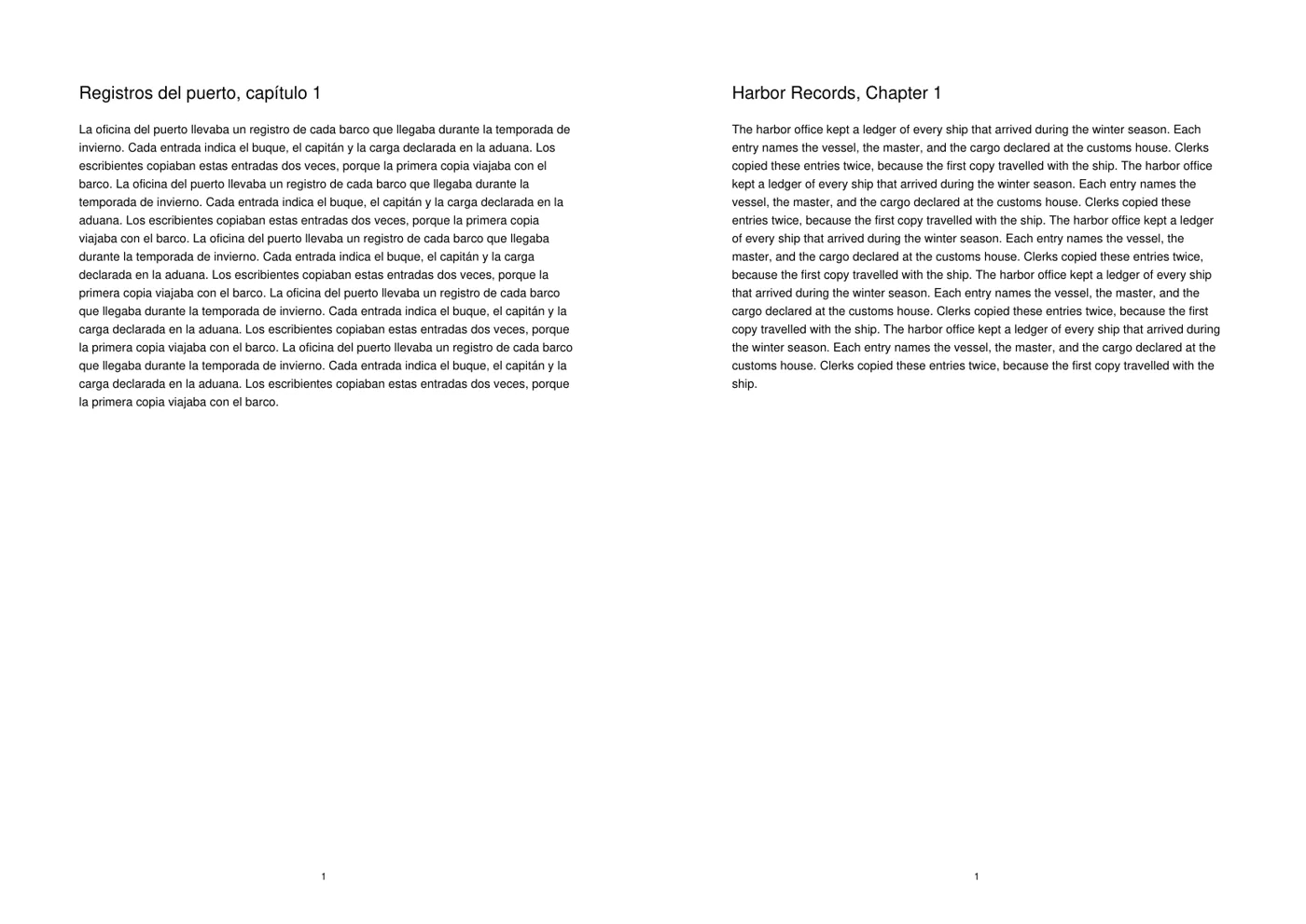
Copied text can come out mixed. Here is what pdftotext 26.08 returned from the first page with its default settings:
La oficina del puerto llevaba un registro de cada barco que llegaba durante la temporada de

The harbor office kept a ledger of every ship that arrived during the winter season. Each

invierno. Cada entrada indica el buque, el capitán y la carga declarada en la aduana. Los
The page looks fine, yet the extracted text alternates between Spanish and English. With its -layout option, pdftotext kept two clean columns. PyMuPDF and PDFium returned all the English first and then all the Spanish. So the result depends on the tool. If a file will go into a search index, a text-to-speech reader, or an AI tool, give it the translation-only PDF. Our guide to fixing PDF copy and paste covers other reasons extracted text can go wrong.
Everything gets smaller when the page has to fit. The text is still 11 pt inside the file, but the page is now twice as wide. This is simple arithmetic rather than a device test:
| Where it is shown | Side by side | Alternating pages |
|---|---|---|
| Phone, 390 CSS pixels wide, fit to width | About 3.6 px | About 7.2 px |
| Printed on A4, fit to page, no margins | About 7.8 pt | 11 pt |
| Printed on A3 | 11 pt | Not needed |
You can zoom on a phone, but then you lose the reason for choosing this layout, since only one language fits on screen at a time.
One landscape page makes it worse. We turned page 4 of a copy of the sample sideways. In the side-by-side version, that page became 1684 x 595 pt, twice the width of a landscape A4 sheet. Printed on A4, its 11 pt text drops to about 5.5 pt. Wide tables and charts often sit on landscape pages, and those are often the pages you most want to check, so look at them first. Translating PDF tables and charts covers what else to check on those pages.
Alternating pages: easier to read, with its own traps
The alternating file keeps each page at its original size, so the text stays readable. After the merge step it also kept all six bookmarks, and they still pointed to the right chapters.
Page numbers no longer match. With the translated page first, source page n sits at PDF page 2n and its translation at PDF page 2n - 1. Page 150 of the source is PDF page 300. The numbers printed on the pages stay as they were, so the viewer's page box and the page footer now disagree. Cite the printed number, not the viewer's. Fixing PDF page numbers explains how the two kinds of numbering differ.
Bookmarks land on the source page. In our sample, the bookmarks pointed to PDF pages 2, 4, 6, 8, 10, and 12, which are all English pages, and their titles stayed in English. To read a chapter's translation, go back one page.
Two-page view can split the pairs. Pages 1 and 2 are a pair, and so are 3 and 4. A plain two-page view shows them correctly. If your viewer treats page 1 as a cover and shows it alone, it will pair page 2 with page 3: the source of one page beside the translation of the next. Our files do not set a page layout, so what you see depends on the viewer. Acrobat users on Adobe's community forum call this setting Show Cover Page in Two Page View. We did not test it. Turn it off if the languages look mismatched.
Double-sided printing separates what you want to compare. A translation and its source end up on the front and back of one sheet, so you can't see both at once. Print one-sided and lay the sheets next to each other, at the cost of twice the paper.
If you already have both PDFs
Check the page counts first. The merge we tested pairs pages by position, so one extra page breaks everything after it.
We tested this with a Spanish file that had one extra page after chapter 3, the kind of thing that happens when a translation is exported from Word. Pairing it with the English source gave these results:
| Bilingual page | Left (Spanish) | Right (English) | Result |
|---|---|---|---|
| 3 | Chapter 3 | Chapter 3 | Correct |
| 4 | Chapter 3, continued | Chapter 4 | Wrong |
| 5 | Chapter 4 | Chapter 5 | Wrong |
| 6 | Chapter 5 | Chapter 6 | Wrong |
The Spanish chapter 6 was missing entirely, because the side-by-side merge stopped at the shorter file's length. No error appeared, and the first three pages looked right, so a quick look at the start of the file would miss it. The alternating merge stopped with an error on the same two files, which is the easier failure to notice. Fix the page breaks in the translation before merging.
This short Python script makes a side-by-side file with the source on the left. It stops if the page counts differ, and it worked on our sample files with PyMuPDF 1.27.2.2:
import pymupdf

src = pymupdf.open("source.pdf")
tgt = pymupdf.open("translated.pdf")
if src.page_count != tgt.page_count:
    raise SystemExit(f"Page counts differ: {src.page_count} vs {tgt.page_count}")

out = pymupdf.open()
for i in range(src.page_count):
    w = max(src[i].rect.width, tgt[i].rect.width)
    h = max(src[i].rect.height, tgt[i].rect.height)
    page = out.new_page(width=w * 2, height=h)
    page.show_pdf_page(pymupdf.Rect(0, 0, w, h), src, i)
    page.show_pdf_page(pymupdf.Rect(w, 0, w * 2, h), tgt, i)
out.save("bilingual.pdf")
Like the layout we tested, it won't keep bookmarks or links.
For alternating pages, the qpdf documentation describes a --collate option that interleaves files. Adapted from its example, the command would look like this, though we did not run it:
qpdf --collate translated.pdf --pages . source.pdf -- bilingual.pdf
Without command-line tools, answers on Adobe's forum describe splitting both files into single pages and merging them back in alternating order. That works for a short file and gets tedious quickly.
If the source is a scan, there is nothing to pair until it has been through OCR. See how to translate a scanned PDF first.
Check the file before you rely on it
Run these on the real bilingual PDF, not a preview of the first few pages.
- Count the pages. Side by side should match the source page count, and alternating pages should be exactly double. A lower number means pages were dropped.
- Check a late pair. Open the last pages and one page near the middle, and confirm that both sides show the same content. A pairing error continues to the end of the file once it starts.
- Look at wide pages. Find any landscape table or chart and view it at the size you will use it.
- Try the bookmarks. If you depend on them, click two or three.
- Copy one sentence if the text will be reused, and paste it into a plain text editor.
- Print one page before printing the whole file.
A bilingual file makes translation errors easier to find, but it doesn't check anything for you. The PDF translation QA checklist covers what to look for once the pages line up.
How this works in BookTranslator
If you upload a PDF to the PDF translator, the task form offers a Bilingual PDF Layout setting with two choices. Same page is the default and Separate pages is the alternative. Their merge steps are the side-by-side and alternating functions tested above, and you can download both a translation-only PDF and a bilingual PDF. We read the rest of this section from the code and did not run a full translation job.
- Order: the translation comes first in both layouts. It is on the left in Same page, and on the odd-numbered pages in Separate pages. We didn't find a setting in the form to change this.
- Bookmarks: a finishing step copies the source's bookmarks onto a Same page file, so it should not stay empty the way the table above shows. Separate pages skips that step and relies on what the merge inherits, and long files are processed in parts, which can remove them. Check them on your own file if you depend on them.
- Links: the job clears links from the source before merging, in both layouts. Don't expect clickable links in the bilingual file, even though the merge-only sample above kept them in alternating pages.
- Timing: you choose the layout when you submit the task, so choose it for how you will use the file.
- OCR Mode: the layout setting doesn't appear when OCR Mode is on, because that mode works differently. It rebuilds the document rather than keeping the original pages, and its code places each translated block directly after its source block. We read that code but did not run this mode, so check a sample. Translating a PDF while keeping its format explains when to use each mode.
Ebooks have their own method, covered in our guide to bilingual EPUBs. Researchers working through a paper can continue with how to translate a research paper.
Okuthunyelwe Okuhlobene