How to Translate a Word Document While Keeping the Format
Preserve Word styles, tables, lists, headers, footers, images, and editable DOCX structure with a practical translation and QA workflow.
Fast Answer: Translate the DOCX File, Not Copied Text
To translate a Word document without losing formatting, upload the DOCX to a document-aware DOCX Translator, keep the source file unchanged, and review the translated copy in Word. Copying text into a chat box or translator discards styles, section breaks, table structure, headers, footers, fields, comments, and image relationships before translation even begins.
The correct goal is not a screenshot that “looks about right.” The output should remain an editable DOCX whose structure still works.
Why DOCX Usually Survives Better Than PDF
A DOCX is a ZIP package containing structured XML, media, styles, and relationship files. A PDF is usually a fixed page canvas. DOCX therefore exposes semantic objects a translator can preserve:
- paragraphs and runs;
- named heading and body styles;
- lists and numbering definitions;
- table cells and merged regions;
- sections, headers, and footers;
- footnotes and endnotes;
- hyperlinks and media relationships;
- comments and revisions;
- fields and content controls.
That structure is an advantage, not a guarantee. Poorly constructed Word files can still be fragile. A document built with spaces, tabs, manual line breaks, floating text boxes, and direct formatting is much harder to translate cleanly than one built with styles and real tables.
Preflight the Source Document
Before uploading the file:
- Save a separate source copy.
- Accept or reject revisions only if the review owner approves.
- Resolve whether comments should remain, be translated, or be removed.
- Replace manual spacing with paragraph and table formatting where practical.
- Use heading styles instead of bold body paragraphs.
- Check that tables are real tables.
- Update the table of contents and fields.
- Confirm fonts support the target language.
- Remove hidden or obsolete content that should not be translated.
- Open the file once in Word and repair any existing corruption warning.
Preflight is not cosmetic cleanup. It removes ambiguity about what is structure and what is accidental visual positioning.
Step-by-Step Format-Preserving Workflow
- Choose the target locale, not only the language. French for France and French for Canada can require different terms and conventions.
- Build a short glossary for names, product terms, definitions, and words that must stay unchanged.
- Upload the intact DOCX to DOCX Translator.
- Translate a representative file or section first when the document is high risk.
- Download the translated DOCX under a new filename.
- Open it in desktop Word using Print Layout.
- Update fields and the table of contents.
- Compare structure, numbers, and terminology against the source.
- Run human review appropriate to the document's consequences.
For Microsoft's built-in route, follow the official Translate a whole Word document steps, then apply the same structural QA below.
Use the DOCX Stress Test
Download the synthetic DOCX translation stress test. It contains multiple structures that a plain-text workflow cannot preserve.
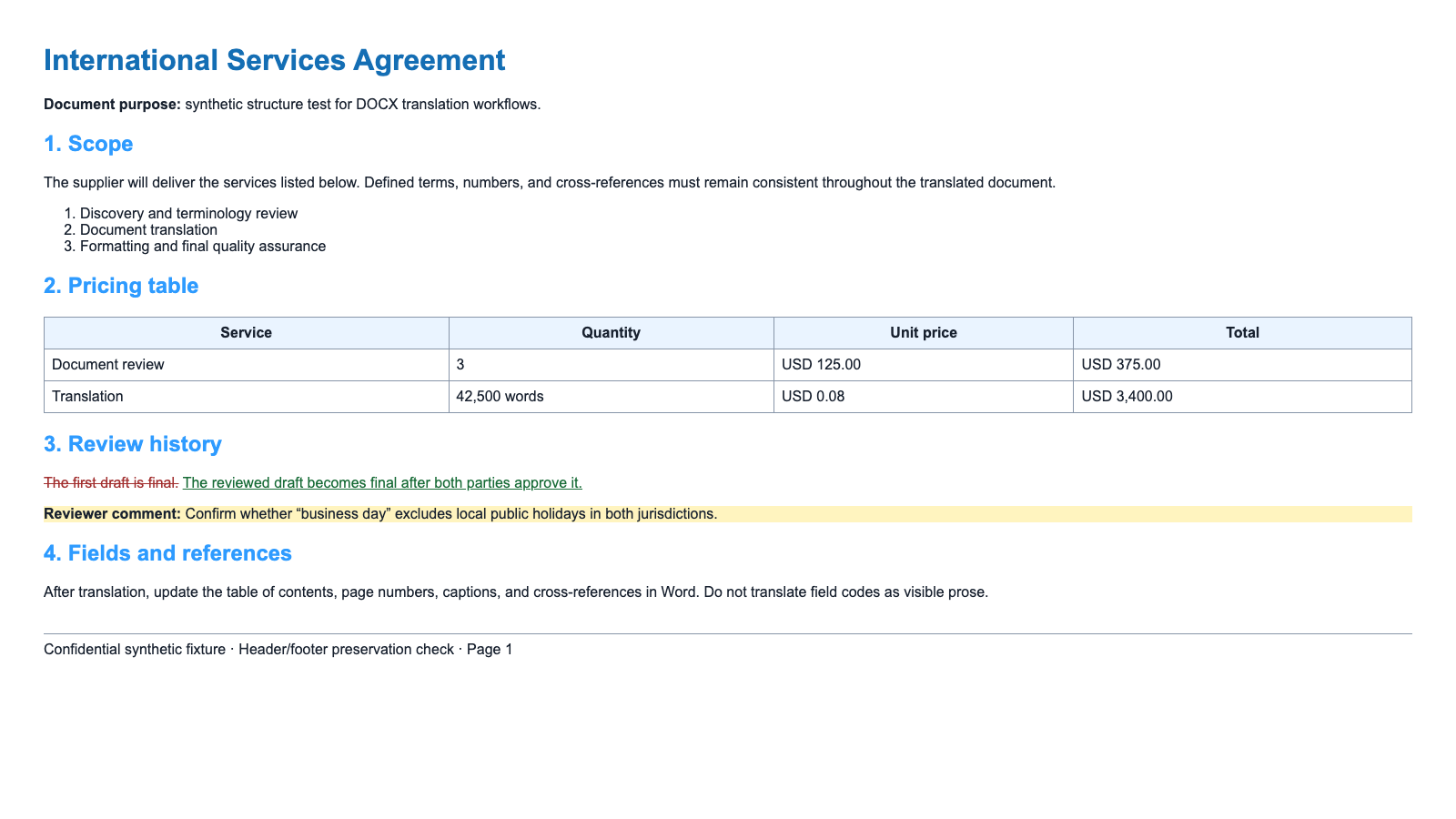
Test the source and output with two separate scores:
Structural editability
- Can you edit text without moving unrelated objects?
- Are headings still represented by styles?
- Are table cells still cells?
- Do lists continue numbering correctly?
- Do headers and footers belong to the correct sections?
Visual fidelity
- Is the hierarchy recognizable?
- Is any text clipped or overlapping?
- Do images remain with their captions?
- Are page breaks reasonable?
- Is the target script rendered by an appropriate font?
A flattened PDF that resembles the source can score well visually and still fail the DOCX job because it is no longer editable.
Tables, Lists, Images, and Text Boxes
Tables
Compare row count, column count, merged cells, numbers, units, and header repetition. Allow row height to expand when necessary; do not hide target text to preserve the source height.
Lists
Check numbering across section breaks and nested levels. Word numbering can restart unexpectedly when paragraphs are rebuilt.
Images
Verify image relationships, position, wrapping, captions, and alt text. Text inside an image requires image-aware translation; translating nearby prose does not change pixels.
Text boxes and shapes
These are common overflow points. Longer translation may clip inside a fixed shape even when ordinary paragraphs are fine.
Headers, Footers, Page Numbers, and Sections
Word can store different headers and footers for:
- the first page;
- odd and even pages;
- each document section;
- portrait and landscape sections.
Review at least one page from every section. Check page-number fields after adding or removing pages. A header that looks correct on page one may still be missing from an appendix.
Translation Expansion and Pagination
Pagination will often change. That is not automatically a formatting failure.
Accept a page-count change when:
- all content remains present;
- headings stay with the following content;
- tables break across pages sensibly;
- footnotes stay associated with their markers;
- cross-references and ToC fields are updated.
Treat it as a failure when text is clipped, font size becomes unreadable, a heading is stranded, or a table row is split into nonsense.
Post-Translation Formatting Checklist
- The file opens without a repair warning.
- The output is an editable DOCX.
- Heading hierarchy matches the source.
- Lists preserve order and nesting.
- Tables preserve records, values, and merged cells.
- Images, captions, and alt text remain connected.
- Headers and footers work in every section.
- Page numbers, ToC, captions, and cross-references are updated.
- Comments and revisions match the chosen review policy.
- Fonts support every target-language character.
- No hidden or untranslated source text remains unexpectedly.
Common Failures and Fixes
| Failure | Likely cause | Fix |
|---|---|---|
| Heading looks right but ToC misses it | Direct formatting replaced a heading style | Reapply the semantic heading style |
| Table rows become paragraphs | Plain-text or weak conversion workflow | Return to intact DOCX translation |
| Page numbers are wrong | Fields were not updated | Update all fields in Word |
| Comments disappear | Review content was flattened or excluded | Restore from source and follow a revision policy |
| Target characters show boxes | Font lacks glyphs | Apply and embed an appropriate font |
| File becomes read-only PDF | Workflow did not return DOCX | Use a file-in, DOCX-out translator |
For revision-heavy files, run the DOCX review stress test before committing to a tool. Reject an output that silently accepts revisions, loses comments, changes reviewer metadata, or detaches comment anchors.
Dihlooho tse amanang