How to Use Microsoft Copilot for Translation: Files, Limits, and Gaps
Which Microsoft tool translates a whole Word file, what Copilot Chat returns, its 50 MB and document-length limits, and how to use Copilot to review a translation.

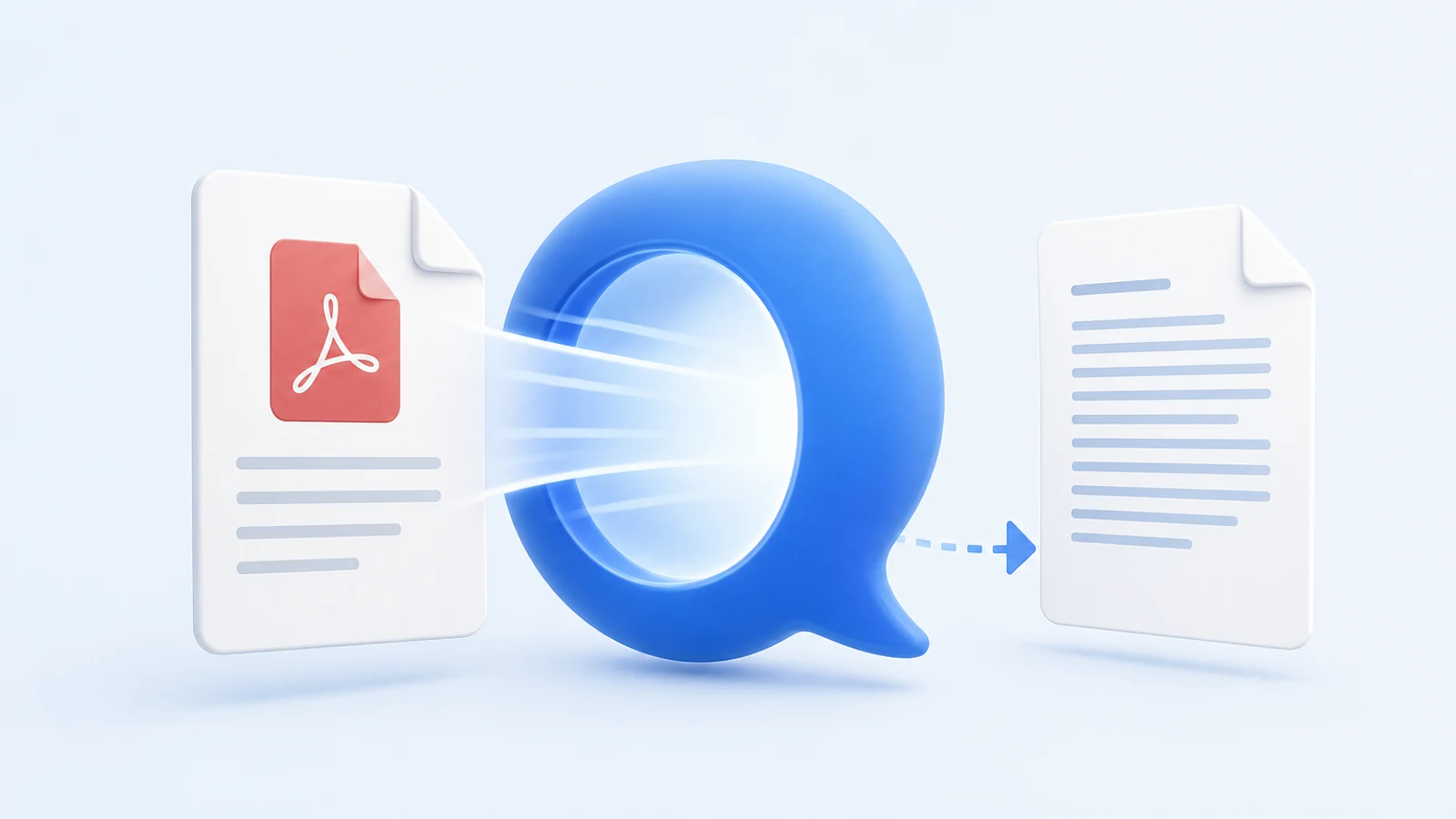
If you have Microsoft 365 and a document in the wrong language, the obvious move is to ask Copilot to translate it. That works for a paragraph, an email, or a page you need to understand. It is the wrong starting point for a whole Word file. Microsoft's documented way to translate a full document into a new file is Word's built-in Translator, under Review > Translate > Translate Document. That command is a separate feature, not Copilot.
So split the job in two. Use Word's Translator, or a dedicated file translator, to produce the translated document. Use Copilot for what it is documented to do well: reading, explaining, rewriting a selection, and checking a translation against your terminology.
"Copilot" is also not one product. What you can do depends on whether you are in Copilot Chat, Copilot in Word, or Copilot in PowerPoint, and on whether you sign in with a work or personal account. Everything below comes from Microsoft's own support pages, checked on 2026-10-15. Microsoft changes these pages often, so open the linked page before you rely on a menu name.
Which Microsoft Entry Point Translates What
| Entry point | Who has it | What you give it | What comes back |
|---|---|---|---|
| Word: Review > Translate > Translate Document (Translator, not Copilot) | Microsoft 365 subscription or Office 2021, with connected experiences turned on | The open Word document | A translated copy of the document in a new window |
| Word: Review > Translate on a selection | Same | Highlighted text | Translated text you insert in place of the selection |
| Copilot in Word | Depends on your subscription and your organization's settings | Selected text plus your instruction | A suggestion you can Replace, Insert below, or Regenerate |
| Copilot Chat with an uploaded file | Included for organizations with a Microsoft 365 subscription (work or school) | An uploaded Word file, PDF, or presentation | A chat answer: text, not your original file in a new language |
| PowerPoint: Review > Translate | Microsoft 365 | Highlighted text on a slide | Translated text for that selection |
| Copilot in PowerPoint | PowerPoint for Microsoft 365 on Windows, Mac, and web | Your deck plus a chat instruction | Edits to the deck; Microsoft warns that large decks may hit limits |
Sources: Translate text into a different language, Edit content with Copilot in Word, Microsoft Copilot Chat FAQ, File formats supported by Microsoft Copilot, and Edit with Copilot in PowerPoint.
Three details in those pages change the decision:
- The whole-document command makes a copy. Microsoft says that with Translate Document, "a copy of the translated document will be opened in a separate window." Your original stays as it was, which is what you want for review. The same page lists only word, phrase, or selection translation for Excel and PowerPoint. It also notes that document translation is not available on Microsoft 365 operated by 21Vianet.
- The Copilot pages describe editing, not document translation. The Copilot in Word page covers selecting text, describing a change, and choosing Replace, Insert below, or Regenerate. The Copilot Chat FAQ describes uploading a file so Copilot can "reason over it" in its answer. Neither page describes returning a translated version of your file. Asking Copilot to translate a selection is reasonable. Expecting it to rebuild a 40-page report in another language is not something Microsoft documents.
- The PowerPoint translate page has moved. Microsoft once had a support page called "Translate your presentation with Copilot." On 2026-10-15, its URL redirected to the general "Edit with Copilot in PowerPoint" page. That page lists slide editing, summaries, image generation, and brand kits, but no translate command. It warns that "large or complex presentations may exceed system limits." If a tutorial tells you to click a Copilot translate button on a slide, check that your version still has it before you plan around it.
What Most Copilot Translation Guides Get Wrong
Most guides treat "Copilot can translate" and "Copilot can translate my document" as the same claim. They are different jobs, and the difference is the deliverable.
When you translate a selection, the deliverable is a few sentences. Copilot's answer is the result, and you can judge it on the spot.
When you translate a document, the deliverable is a file. Headings must stay headings, tables must keep their cells, footnotes must stay attached, and nothing may go missing in the middle. A chat answer can contain good translated text and still fail that job: it arrives as text in a conversation, and you rebuild the document around it by hand.
That is why the most useful Microsoft tool for a whole Word file is the one without the Copilot icon. Translate Document is designed to hand back a document. Copilot is designed to hand back an answer.
The Limit That Matters Is Length, Not File Size
Microsoft's file upload page, which applies to personal accounts, work or school accounts, and free Copilot Chat, lists up to 20 files in one conversation and up to 50 MB per file. For a text-heavy Word file or PDF, size is rarely the problem. The trouble starts after the upload.
Microsoft's page on how document length affects Copilot responses is unusually direct about it. Depending on the task, Copilot may "focus only on the beginning of the document and then ignore anything beyond that." It tends to prioritize the beginning and end of a file, so results "may give less attention to content that was in the middle of a long file." Microsoft's own advice is to split a long document into smaller ones and give them to Copilot separately.
For translation, the middle of the file is exactly where skipped paragraphs hide. A file that uploads successfully is not a file that Copilot will translate completely. If you do translate with Copilot, give it one section at a time and check that the last sentence of each section came back.
Choose the Route by What You Need at the End
| What you need at the end | Best Microsoft route | When to use something else |
|---|---|---|
| Understand a foreign-language email, page, or section | Copilot Chat or Copilot in Word on the selection | Rarely needed |
| A translated Word document you can edit | Word: Review > Translate > Translate Document | When the file is a book or long manuscript and you need consistent names across chapters; see below |
| The same PDF in another language | No direct route: open the PDF in Word first, which converts its layout | A PDF translator that works on the PDF itself, including OCR for scanned pages |
| A translated slide deck | Review > Translate per text box, or Copilot in PowerPoint if your version supports it | A file-level document translator that accepts PPTX; check every slide after any machine translation |
| A full book: DOCX, PDF, or EPUB | Not what these tools are designed for | A whole-file workflow such as the DOCX translator or EPUB translator |
| A check of an existing translation against your glossary | Copilot Chat with both files attached | Copilot is a good fit here; see the review workflow below |
Opening a PDF in Word converts its layout into an editable document, and complex pages can shift in that conversion. If layout matters, read our guide on translating a PDF without losing its format before you start. For a Word file with tables, styles, tracked changes, or cross-references, the Word formatting guide covers what to check after any machine translation.
A Better Use of Copilot: Reviewing the Translation
The strongest use of Copilot in a translation job is not producing the first draft. It is checking one. Copilot can read the source and the translation side by side, which is tedious for a person and a natural task for a chat assistant. This workflow follows the documented features: Translate Document for the draft, and Copilot Chat file upload for the review. It is a method, not a benchmark result.
Step 1: Make the draft with Translate Document
Translate the original Word file with Review > Translate > Translate Document and save the copy that opens under a new name, such as report-de-DRAFT.docx. Keep the original untouched.
Step 2: Write down your terminology before you review
List the terms that must not vary: product names, people, places, job titles, defined legal or technical terms, and forms of address. Give each one its approved translation. Our terminology consistency guide explains what belongs in this list and why it matters more as a document gets longer.
Step 3: Ask Copilot to audit, not to retranslate
Attach the source and the draft to Copilot Chat and give it one narrow job at a time. Narrow requests produce answers you can check:
You are reviewing a machine translation. Do not rewrite it.

FILES
Source: report-en.docx
Translation: report-de-DRAFT.docx

GLOSSARY
[source term] = [approved translation]
[source term] = [approved translation]

TASK
1. List every place where a glossary term is translated differently
   from the approved form. Quote the sentence and give its heading.
2. List any source paragraph that has no matching paragraph in the
   translation.
3. List numbers, dates, and names that differ between the two files.

Answer as a table: location | issue | source text | translated text.
Then fix the draft yourself in Word. Copilot's job is to point at problems; you decide the change.
Step 4: Spot-check Copilot's findings
An AI reviewer can miss an issue or report one that does not exist. Before you trust the table, check a few of its "no issue" sections yourself. Then search the draft for each glossary term with Word's Find, which is reliable for exact matches. Have a qualified reader check anything legal, medical, or meant for publication.
Privacy: Work Accounts and Personal Accounts Differ
Microsoft's file upload page says files you share with Copilot are stored for no longer than 18 months and are not used for model training. The Copilot Chat FAQ adds that for users who sign in with a work or school (Entra) account, uploaded files are stored in the user's OneDrive for Business, can be deleted by the user, and are not used to train the model under enterprise data protection. It also says that prompts and responses are logged and available for audit and eDiscovery, with controls that depend on the plan.
Personal Microsoft accounts use a different Copilot with different terms, so do not assume the work-account commitments apply to a family or personal plan. Your organization's own policies may also restrict which files you can upload. Before uploading a contract, a manuscript, or anything confidential, check your organization's policy and use our document translation privacy checklist.
When Copilot Is the Wrong Tool
Copilot and Word's Translator cover a lot of everyday work. They fall short in three common situations:
- Books and long manuscripts. A novel or nonfiction book needs the same names and terms from the first chapter to the last. Translating selection by selection in chat makes that consistency your job. Translate Document gives you a file, but Microsoft's page describes no glossary or terminology step.
- PDFs, especially scans. Neither route translates a PDF in place. Converting through Word changes the layout, and an image-only scan has no text to convert until it goes through OCR.
- EPUB files. Microsoft's Copilot file-formats page does not list EPUB among the document types for work accounts.
For those jobs, BookTranslator translates the whole file instead of chat text. It works with DOCX, PDF, and EPUB, uses OCR mode for scanned or image-heavy PDFs, keeps names and terms consistent across chapters with an automatic glossary, and shows the price before you pay. If you have a long Word manuscript or a PDF, upload it to the DOCX translator or the PDF translator and check the quoted price before deciding.
If you are choosing between general AI assistants for translation rather than working inside Microsoft 365, our comparison of LLMs for translation and the ChatGPT translation guide cover the same chunking and review questions for other tools. For DeepL's document limits, see the DeepL document translation guide.
Related Posts