How to Translate a Multi-Column PDF Without Scrambling the Reading Order
Check how a two-column PDF reads before you translate it, choose a layout, OCR, or rebuild workflow based on that check, and review the translated columns, captions, and overflow.
Quick Answer: Check the Reading Order Before You Translate
A two-column PDF can look tidy and still give a translation tool the paragraphs in the wrong order. When that happens, the translation can be fluent, sentence by sentence, while the page as a whole stops making sense. No tool can translate its way out of a source it read in the wrong order.
So the order of work is:
- Check how the page reads. Copy one representative page and confirm that every paragraph comes out in the order a person would read it.
- Choose the workflow from that check. Use a layout-preserving PDF translation when the order is right, OCR mode when the text is unusable, and a convert-and-repair route when you need an editable file.
- Check the translated columns. Look at the column break, figure captions, full-width notes, footnotes, and lines that run too long.
The rest of this guide shows why step 1 can't be skipped, using a small test you can download and run yourself. It covers PDFs with a real text layer, such as exported reports, papers, and newsletters. If your pages are scans, start with how to translate a scanned PDF.
What We Tested
On 2026-10-20 we built three one-page PDFs from the same text: a title, a figure box at the top of the left column, three paragraphs in each column, a bold note spanning both columns, and a footnote. Every paragraph starts with a marker from P1 to P8, so the correct reading order is P1 through P8.
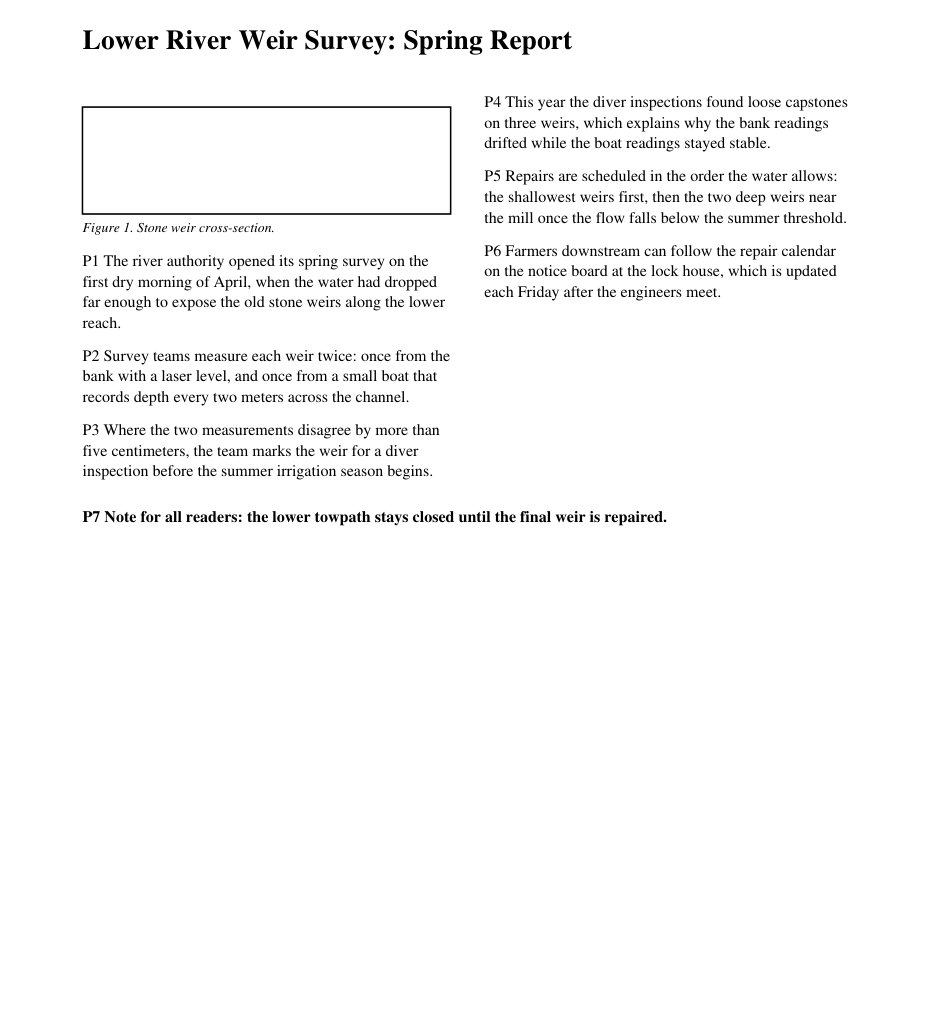
The three files differ in ways you cannot see on screen:
two-column-stream-logical.pdfstores the text left column first, then right column.two-column-stream-rowwise.pdflooks identical but stores the lines row by row, alternating between the columns.two-column-no-figure-rowwise.pdfstores the text row by row and has no figure box. It is the control file.
We then extracted the text with seven common open-source methods and recorded the paragraph order each one returned:
| Extractor | Logical storage, figure | Row-by-row storage, figure | Row-by-row storage, no figure |
|---|---|---|---|
| pdftotext 26.08.0 (default) | P4 P1 P5 P6 P2 P3 P7 P8 | P4 P1 P5 P6 P2 P3 P7 P8 | P1–P8 correct |
pdftotext -raw | P1–P8 correct | P1 P4 P5 P2 P6 P3 P7 P8 | P1 P4 P5 P2 P6 P3 P7 P8 |
pdftotext -layout | P4 P5 P6 P1 P2 P3 P7 P8 | P4 P5 P6 P1 P2 P3 P7 P8 | P1 P4 P5 P2 P6 P3 P7 P8 |
pypdf 5.1.0 extract_text() | P1–P8 correct | P1 P4 P5 P2 P6 P3 P7 P8 | P1 P4 P5 P2 P6 P3 P7 P8 |
| pdfminer.six 20240706 | P4 P5 P6 P1 P2 P3 P7 P8 | P4 P5 P6 P1 P2 P3 P7 P8 | P1–P8 correct |
PyMuPDF 1.24.14 get_text() | P1–P8 correct | P1 P4 P5 P2 P6 P3 P7 P8 | P1 P4 P5 P2 P6 P3 P7 P8 |
PyMuPDF 1.24.14 get_text(sort=True) | P4 P5 P6 P1 P2 P3 P7 P8 | P4 P5 P6 P1 P2 P3 P7 P8 | P1 P4 P5 P2 P6 P3 P7 P8 |
None of the seven methods got all three files right. Every method that got one file right got another one wrong. In the control file, pdftotext -raw, pdftotext -layout, and PyMuPDF with sort=True also printed three lines that each mixed text from both columns, which is exactly what a reader sees when copied text runs across the gutter. PyMuPDF with sort=True produced one such line in each of the other two files as well.
The test is deliberately small: one synthetic English page, untagged, created with ReportLab. It does not rank these libraries, and it did not test any translation product, including BookTranslator. What it shows is narrower and more useful: the same-looking page can produce different source order, so the only reliable check is your own file.
You can reproduce the test with the fixture generator, the three PDFs (logical, row-by-row, no figure), the order checker, the extractor runner that calls all seven methods, and the results CSV.
Why the Same Page Reads in Different Orders
Extractors use one of two strategies, and each one fails a different file.
Strategy 1: follow the order stored in the file. A PDF draws text in whatever order its creator wrote it. The poppler manual describes pdftotext -raw as keeping "the text in content stream order" (and no longer recommends that mode), and PyMuPDF's documentation says its default output is plain text "as it is coded in the document" (poppler pdftotext manual, PyMuPDF text recipes). That works when the file stores text in reading order. It fails when the stored order is row by row, as in our second file, even though the page looks the same.
Strategy 2: rebuild the order from where the text sits on the page. pdftotext's default mode tries to output text "in reading order", pdfminer.six groups nearby lines into boxes and lets you weight "a horizontal and vertical position" when ordering them, and PyMuPDF's sort=True sorts "from top-left to bottom-right" (pdfminer.six LAParams). These methods ignore the stored order, so the logical and row-by-row files give identical results.
The control file explains the failure. Without the figure, pdftotext's default mode and pdfminer.six both read P1 through P8 correctly. Add a figure box at the top of the left column, and the first paragraph on the right (P4) becomes the highest text on the page. A method that weights vertical position starts the page there.
This is a common page design, not an edge case: papers open the left column with a figure or abstract box, magazines start a column below an image, and manuals put a warning box above the first step. The full-width note (P7) and the footnote (P8) stayed in place in every run, so a check that only looks at the bottom of the page will miss the problem.
Step 1: Check Your Own PDF in Five Minutes
The markers in our test file don't exist in your document, but the same check works with a few sentences you pick out yourself.
- Pick the hardest page, not page one. Choose a two-column page with a figure, table, or boxed note near the top of a column, plus a full-width heading or note partway down.
- Write down five anchor phrases, in reading order: the first words of the left column, the last words of the left column, the first words of the right column, the full-width element, and the caption.
- Copy the whole page from your PDF viewer and paste it into a plain text editor. If you use a tool with a source preview, use that preview instead, because it shows the order the tool actually received.
- Find the anchors in the pasted text. They should appear in the order you wrote down, and no single line should contain words from both columns.
- Repeat for one different page type, such as a references page, a page with a sidebar, or the first page of a chapter.
Interpret the result this way:
| What the pasted text shows | What it usually means | Next step |
|---|---|---|
| Anchors in order, no mixed lines | Text and reading order are usable | Layout-preserving PDF translation |
| Right column starts before the left | The page is being read by vertical position | Test the translation tool on this exact page before paying for the whole file |
| Lines mix text from both columns | The page is being read straight across | Don't copy and paste; use a file-based workflow and test this page |
| Paragraphs jump between columns | Stored order is row by row or broken | Test a file-based workflow; if it fails, repair or convert first |
| Nothing pastes, or the characters are wrong | Image-only page or a broken text layer | Use OCR; see PDF text extraction vs OCR |
Copy-and-paste is a quick check, not proof of what another tool will do. Our table shows that two tools can read the same file differently. Your viewer's result tells you how risky the file is. The tool's own preview, or a one-page test translation, tells you what that tool actually reads.
If the text pastes with the right letters but broken spacing or line breaks, fix the copy-paste text problems before you judge the column order.
Step 2: Choose the Workflow From What You Saw
Choose the workflow from the check, not from a tool's claim that it keeps your layout.
Order is correct and the text is selectable. Translate the PDF as a file, not by pasting chunks. A layout-preserving workflow places the translated text back into the page, so the columns, figures, and running heads stay where readers expect them. In BookTranslator, that's the standard PDF translation path. Treat any promise to keep a layout, including ours, as something to verify on the hardest page you found in step 1, not as a guarantee.
Order breaks only near figures or boxed elements. Before translating the whole document, run one problem page through your chosen tool. If that page comes out in the right order, the tool is not using the same strategy as your copy check. If it comes out scrambled, change the workflow rather than hoping the rest of the file behaves differently.
The page is scanned, or the text layer is unusable. Use OCR. BookTranslator's OCR mode reads the page image and rebuilds a clean translated PDF. That page recommends it for textbooks, academic papers, tables, and image-heavy pages where preserving the content matters more than the exact layout. We did not test it on the fixtures in this guide. The tradeoff is explicit: OCR mode does not try to preserve the original layout, fonts, or font sizes. For scans in particular, see how to translate a scanned PDF.
You need an editable document anyway. Convert the PDF to Word, fix the reading order there, and translate the DOCX. This takes the most effort, but it is the only route where you can directly correct the paragraph order before translation. It also changes the layout, so use it when the output will be edited further, not when it must look like the original page.
Avoid pasting columns into a chatbot or a text box. You become responsible for reconstructing the order, captions, and footnotes by hand, on every page. Our table shows how easily that order goes wrong before you start.
For academic papers, where the same problem combines with equations, citations, and references, follow the research paper translation workflow. For the general layout-preserving process across all PDF types, see how to translate a PDF while keeping the format.
Step 3: Check the Translated Columns
A multi-column translation fails in places a quick skim misses. Check these five places on every page type you tested in step 1:
- The column break. Read the last sentence of the left column and the first sentence of the right. The argument should continue, not jump to a different paragraph.
- Captions and figures. Every caption should still sit under its own figure, translated, and should not have drifted into the body text.
- Full-width elements. Headings, notes, and pull quotes that span both columns should still span them, and should not be split into two half-sentences.
- Footnotes and running heads. Footnote markers in the body should match the notes at the bottom of the page, and page headers should not appear mid-paragraph.
- Overflow in narrow columns. Translated text is often longer than the source. The W3C's guidance on text size in translation cites IBM figures of about 130% length for English source text over 70 characters when translated into European languages, with larger increases for short strings. A narrow column has little room for that extra text, so look for clipped lines, shrunken type, or text overlapping figures. Headings and table cells are the most likely to overflow.
For review, a bilingual file helps, but its layout matters. Putting source and translation on the same page squeezes two languages into columns that were already narrow. In BookTranslator's standard PDF translation (with OCR mode off), the bilingual PDF offers two layouts, Same page and Separate pages. For multi-column documents, choose Separate pages: each source page is followed by its translated page, so every column keeps its original width. You can still download the translation-only version as well. Our PDF translation QA checklist covers the remaining file-level checks.
If the translated PDF also needs to work with screen readers, visual order is not enough. The tagged reading order needs its own check. The W3C notes that tagged PDF reading order is "determined primarily by the tag order of document elements" (W3C PDF3). Our guide to translated PDF accessibility shows how to test it.
What This Guide Does Not Claim
- It is not a tool ranking. The seven extractors were chosen because they are common and easy to rerun. Each one failed at least one of three files, and a different test file could change which ones fail.
- It did not test translation products. We did not run BookTranslator, DeepL, Google Translate, or any other translator on these files. The product descriptions above come from BookTranslator's current product copy, not from this test.
- One page is not a document. Real files mix page designs, so check at least two page types.
- Tagged PDFs may behave differently. Our fixtures are untagged. A properly tagged PDF carries an explicit reading order that some tools use.
The practical rule stands anyway: find out how your PDF reads before you translate it. If the order is right, translate the file and check the columns. If it's wrong, change the workflow, not the translation settings.
Related Posts