How to Use Google Translate for PDFs: Complete Guide (2026)
Step-by-step instructions for translating PDFs with Google Translate, including the free web method, Google Docs method, and what to do when Google Translate isn't enough.
Quick Answer: Google Translate Works for Some PDFs, But Not for Finished Layout
Google Translate can translate many text-based PDFs for free. It is a good choice when you need a quick understanding of a short document and do not care whether the translated file keeps the exact original layout. It is the wrong first choice when the PDF is scanned, complex, long, table-heavy, or needs to look professional after translation.
Use this rule:
| Goal | Use Google Translate? | Better workflow |
|---|---|---|
| Understand a simple PDF quickly | Yes | Google Translate web upload. |
| Translate a scanned PDF | Usually no | OCR first, then translate. |
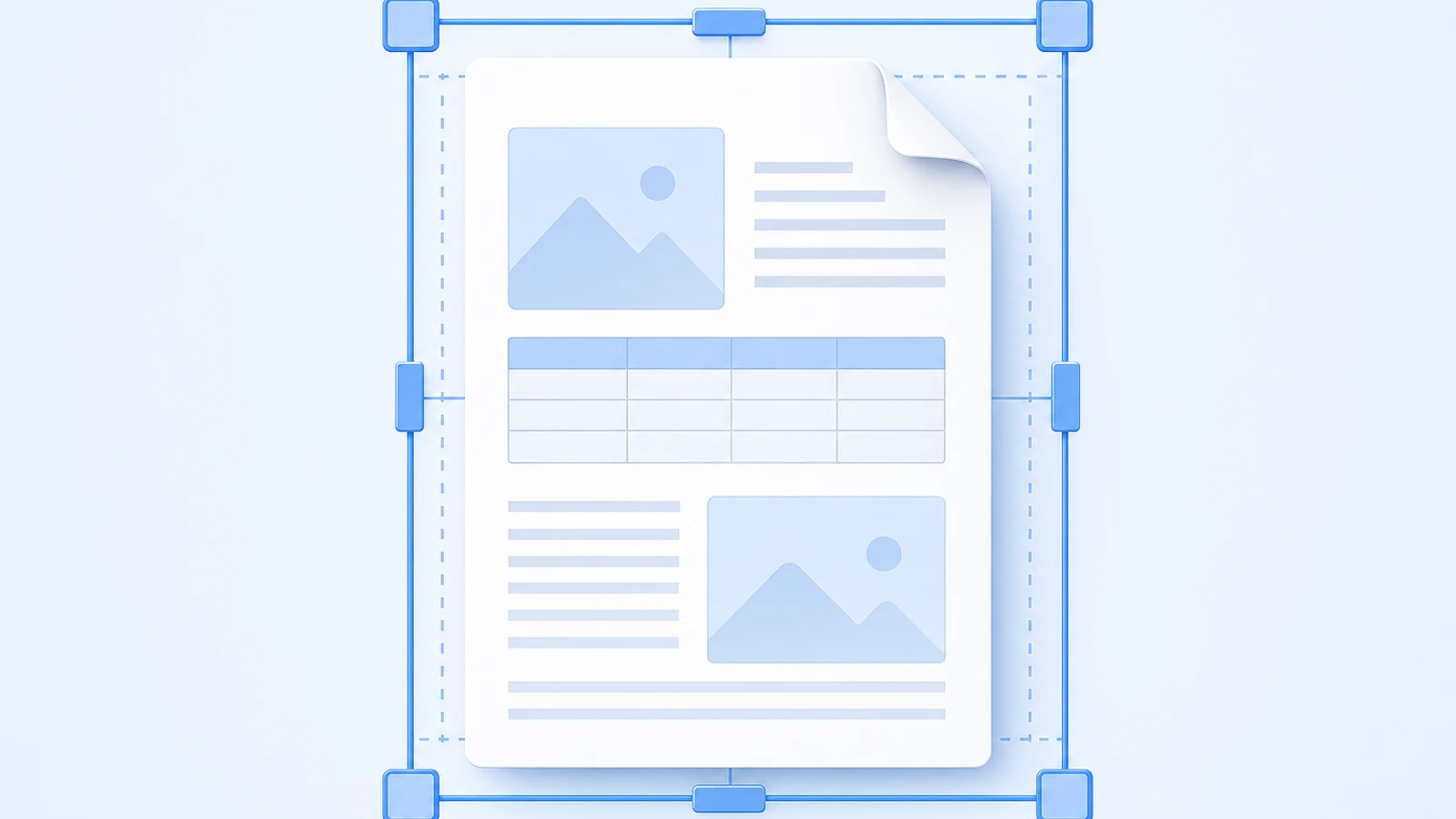
| Keep columns, tables, captions, and images | Usually no | Use PDF Translator. |
| Translate a report or academic paper | Only for a quick preview | Use a formatted PDF workflow. |
| Produce a client-ready translated PDF | No | Use a dedicated PDF translator plus review. |
If preserving layout is the real goal, use the guide to translate a PDF without losing formatting. If you are comparing tools, read the best PDF translator comparison.
Method 1: Translate a PDF in Google Translate
This is the fastest Google Translate PDF workflow.
- Open Google Translate in your browser.
- Choose the document translation option.
- Upload your PDF.
- Select the source language, or let Google detect it.
- Select the target language.
- Run the translation.
- Review the output before using it.
Before you trust the result, check these pages:
- The first page with a title or cover.
- A page with a table.
- A page with images or captions.
- A page with footnotes or citations.
- A dense page with long paragraphs.
- The final page, to make sure nothing important was skipped.
Google's upload rules, document limits, and supported behavior can change. Check the current upload screen instead of relying on old screenshots or old limit numbers from blog posts.
Method 2: Use Google Docs as a PDF Workaround
Google Docs can help when you want editable text instead of a finished PDF. The workflow is:
- Upload the PDF to Google Drive.
- Open it with Google Docs.
- Let Google convert the PDF into an editable document.
- Use the document translation option in Google Docs.
- Review and edit the translated document.
- Export if needed.
This is not a formatting-preservation method. It is a conversion method. The conversion step can change page breaks, columns, tables, fonts, headers, and captions before translation even starts.
Use the Google Docs route when:
- You need editable text.
- You plan to rewrite or reformat the document manually.
- The PDF is simple.
- You are comfortable checking the converted document line by line.
Avoid it when:
- The original layout needs to survive.
- The file is an academic paper with two columns.
- The document has complex tables.
- The PDF is a scan without OCR.
- The output needs to be shared as a finished PDF.
What Google Translate Does Well
Google Translate is useful because it is fast and low-friction. For the right document, that is enough.
It works best for:
- Simple letters
- Short memos
- Plain text PDFs
- Personal reading
- Quick travel, school, or research understanding
- Files where you can tolerate rough formatting
It is also useful as a first-pass reading tool before deciding whether a document deserves a higher-quality translation workflow.
Where Google Translate Breaks
The common failure is not always translation quality. It is document structure.
| Failure | What it looks like | What to do |
|---|---|---|
| Formatting disappears | The output becomes plain text or loose sections | Use PDF Translator if layout matters. |
| Columns merge | Two-column text reads in the wrong order | Use a PDF workflow with layout detection. |
| Tables break | Rows, columns, or units are scrambled | Translate with table review, or rebuild the table manually. |
| Images are ignored | Captions separate from figures | Check figure pages manually. |
| Scanned pages stay untranslated | Output is blank or unchanged | Use OCR first. |
| Dense pages lose text | Some content appears missing | Compare page by page against the original. |
| Terminology drifts | A repeated term changes across pages | Use a glossary or a document workflow with review. |
If your failure is specifically a scan, use the scanned PDF OCR guide.
The Scanned PDF Problem
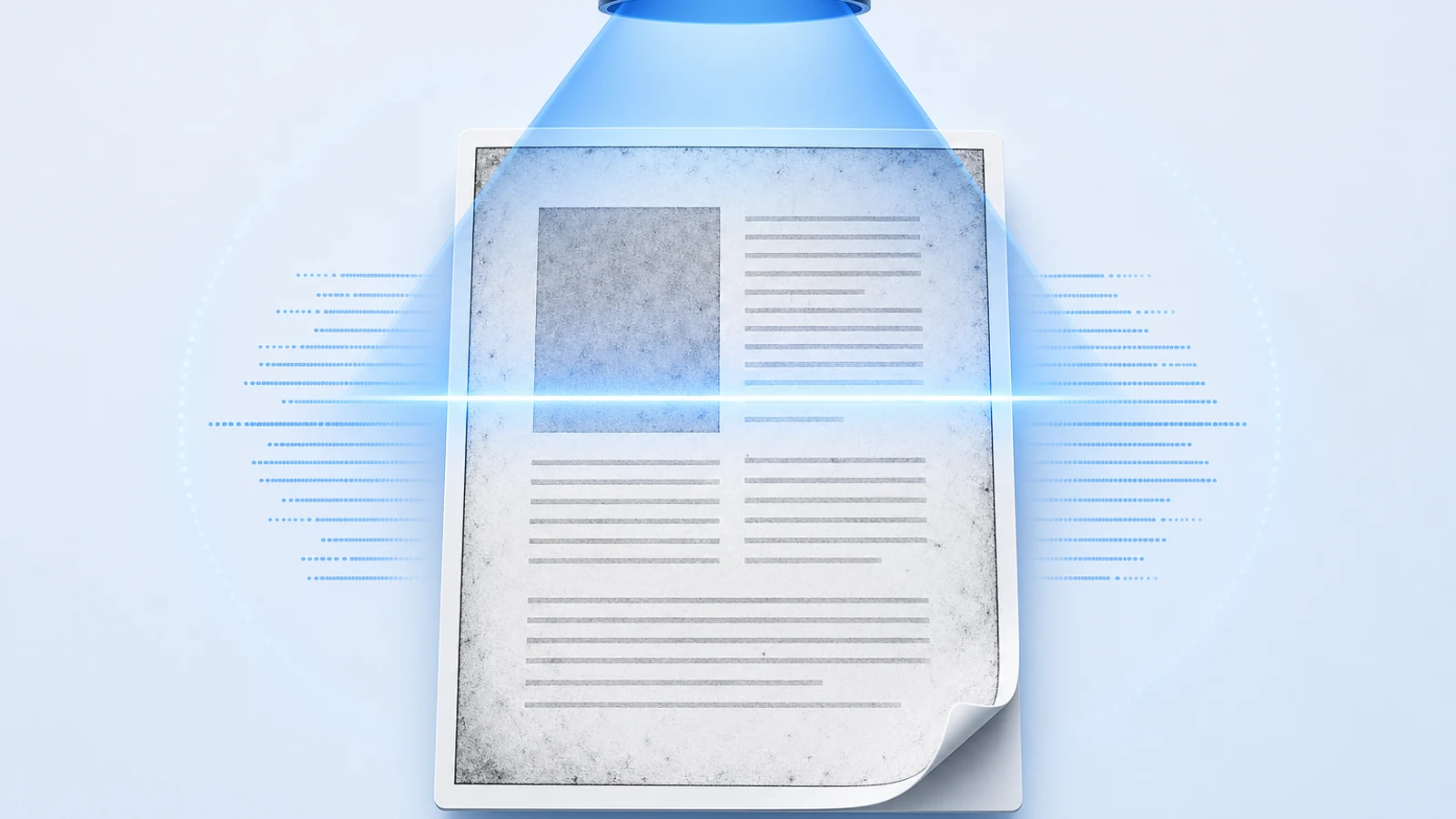
Google Translate needs text to translate. A scanned PDF may not contain text. It may contain only images of pages. If you cannot select individual words in the PDF, Google Translate has little or nothing to extract.
Quick test:
- Open the PDF.
- Try to highlight one sentence.
- Copy and paste it into a plain text editor.
- If the text copies cleanly, the PDF has a text layer.
- If nothing copies, or the whole page selects as an image, run OCR first.
OCR is not just a technical detail. OCR quality controls translation quality. A misread name, number, table label, or citation can become a wrong translation even if the translation engine itself works correctly.
Google Translate vs a Dedicated PDF Translator
| Feature | Google Translate | Dedicated PDF translator |
|---|---|---|
| Quick free understanding | Strong | Strong, but usually more workflow-oriented |
| Finished PDF layout | Weak | Stronger |
| Tables and columns | Risky | Better, still needs review |
| Scanned PDFs | Needs OCR first | Needs OCR or OCR-aware workflow |
| Long document consistency | Risky | Better with document-level review |
| Professional handoff | Not ideal | Better starting point |
| Manual review | Required | Still required for important documents |
If you need a translated file that still looks like the original, use PDF Translator. If you only need a quick reading copy, Google Translate may be enough.
A Safer Google Translate Workflow
If you still want to use Google Translate, use this review process:
- Make a copy of the original PDF.
- Confirm whether the PDF has selectable text.
- If it is scanned, OCR it before translation.
- Translate the PDF in Google Translate.
- Compare output against the original on the hardest pages.
- Check numbers, names, dates, table labels, and section headings.
- If the layout breaks, switch to PDF Translator or another dedicated PDF tool.
- If the wording is important, ask a bilingual reviewer to inspect critical sections.
Do not judge the whole workflow from page one. Many PDFs have a simple title page and a much harder table or figure page later.
When to Stop Using Google Translate
Switch workflows when you see any of these signs:
- The output is a block of unformatted text.
- Tables are unreadable.
- Images and captions are separated.
- The translated document is missing pages or sections.
- The original PDF is a scan.
- You need to submit, publish, send, or archive the translated file.
- The document includes legal, medical, financial, academic, or contractual content.
At that point, the cost of manual repair is usually higher than starting with the right workflow.
Use PDF Translator When Layout Matters
Use BookTranslator PDF Translator when the translated PDF needs to preserve the document structure. It is designed for PDFs where layout, long-document context, and review matter.
A practical split:
- Use Google Translate for a quick read.
- Use ChatGPT for wording help and short-passage review.
- Use OCR for scanned pages.
- Use PDF Translator for the finished formatted PDF.
For a broader tool decision, read the best PDF translator comparison. For formatting-specific steps, read how to translate a PDF without losing formatting.
FAQ
Can Google Translate translate a PDF?
Yes, Google Translate can translate many PDFs through its document translation workflow. It works best with selectable text PDFs and simple layouts. Always review the output before using it.
Can Google Translate keep PDF formatting?
Not reliably enough for professional output. It can be useful for understanding a PDF, but columns, tables, images, captions, headers, and footnotes may break. If formatting matters, use PDF Translator.
Why did Google Translate return my PDF unchanged?
The PDF may be scanned or image-only. If the file has no text layer, Google Translate may not have text to extract. Use the scanned PDF translation workflow to run OCR first.
Is Google Docs better than Google Translate for PDFs?
Google Docs is better when you want editable text. It is not better when you need the PDF layout preserved. The conversion step can change the document before translation starts.
Should I use Google Translate or ChatGPT for PDFs?
Use Google Translate for quick document understanding. Use ChatGPT for short passages, tone, glossary work, and review. Use a dedicated PDF translator for formatted output. The ChatGPT workflow is covered in the ChatGPT PDF translation guide.
What is the best alternative to Google Translate for PDFs?
If the reason you are leaving Google Translate is formatting, use PDF Translator. If the issue is scanned pages, run OCR first. If the issue is wording quality, use a human reviewer or ChatGPT for targeted review after the document translation step.
Can Google Translate handle Hindi, Tamil, or other Indic-script PDFs?
The text translation itself is usually fine, but PDFs in Devanagari and other Indic scripts often come from scans, which is where Google Translate struggles most. For those files, OCR plus a document translator works better — see translate a PDF from Hindi to English or from English to Hindi.
Related Posts