How to Translate a PDF with ChatGPT: Complete Guide (2026)
Step-by-step guide to translating PDFs using ChatGPT, including workarounds for formatting, limitations for long documents, and better alternatives for book-length content.
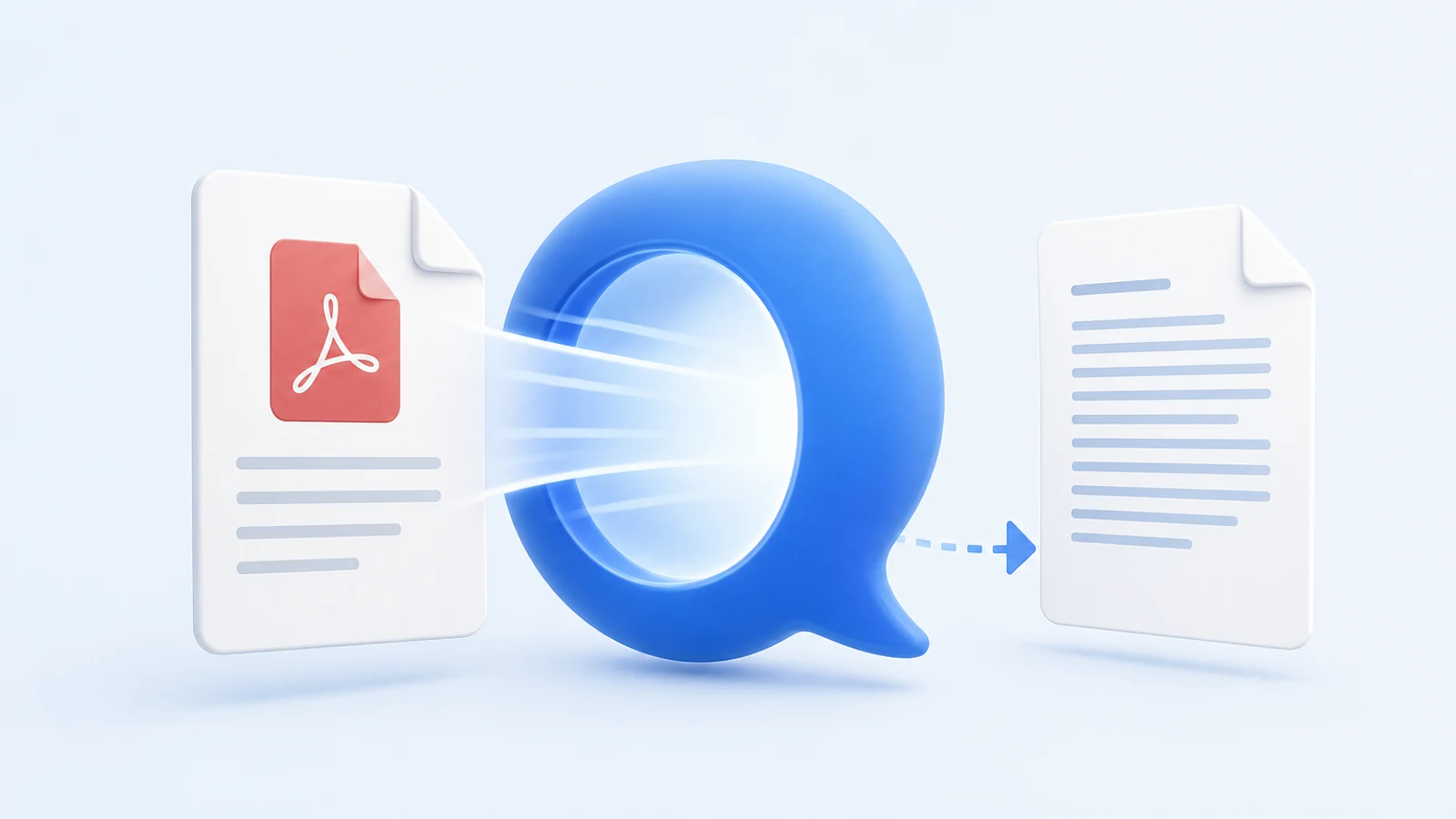
Quick Answer: ChatGPT Can Translate PDF Text, But It Is Not a PDF Layout Tool
ChatGPT can help translate text from a PDF, especially short sections, difficult paragraphs, terminology, tone, and review notes. It is not the best tool for producing a finished translated PDF that preserves tables, columns, images, footnotes, page numbers, and original layout.
Use this split:
| Job | Use ChatGPT? | Better workflow |
|---|---|---|
| Translate a short PDF excerpt | Yes | Upload or paste the section and prompt carefully. |
| Preserve the full PDF layout | No | Use PDF Translator. |
| Translate a full book-length PDF | Not as the main workflow | Use BookTranslator. |
| Improve tone or style | Yes | Use ChatGPT after extracting the relevant text. |
| Translate scanned pages | Only after OCR | Run OCR first, then translate. |
| Review a machine translation | Yes | Ask ChatGPT to flag issues without rewriting everything. |
If your main problem is formatting, read how to translate a PDF without losing formatting. If you are comparing Google and ChatGPT, read the Google Translate PDF guide as the companion page.
When ChatGPT Is Useful for PDF Translation
ChatGPT is strongest when the task requires language judgment, not file reconstruction.
Good use cases:
- Translating one section of a PDF.
- Rewriting a literal translation so it sounds natural.
- Creating a glossary before translating a long document.
- Checking whether a term is used consistently.
- Explaining a technical paragraph in another language.
- Adapting tone for a business, academic, or casual audience.
- Reviewing a translated passage for omissions or awkward phrasing.
The reason is simple: ChatGPT is a language model. It can reason about context, style, register, and ambiguity. That does not mean it can reliably rebuild a PDF page.
When ChatGPT Is the Wrong Main Tool
Do not use ChatGPT as the main workflow when:
- The output must be a finished PDF.
- The document has tables, figures, captions, footnotes, or equations.
- The PDF is long enough that consistency across sections matters.
- The file is scanned and OCR has not been done.
- You need page-by-page layout preservation.
- The content is legal, medical, financial, or academic and must be reviewed.
The common mistake is asking ChatGPT to "translate this PDF" and expecting a document back. You may get translated text, a summary, or partial output, but not a reliable formatted PDF that mirrors the original.
For finished documents, use PDF Translator. For books and long-form files, use BookTranslator.
Basic ChatGPT PDF Translation Workflow
Use this only when a chat-based workflow is appropriate.
- Open the PDF and check whether the text is selectable.
- If the PDF is scanned, run OCR first.
- Upload the PDF or paste the specific excerpt, depending on what your ChatGPT plan and interface currently support.
- Ask ChatGPT to inspect the document structure before translating.
- Translate a small section first.
- Review the output for omissions, names, numbers, citations, and terms.
- Continue section by section only if the first result is accurate.
Do not rely on old file-size or context-limit numbers from any article. ChatGPT product limits and file handling behavior can change. Check the current interface before planning a large translation job around it.
Prompt Template: Translate a PDF Section Without Summarizing
Use this for a short section where you want a faithful translation.
Translate the following PDF section from [source language] to [target language].

Rules:
- Translate the full text. Do not summarize.
- Preserve headings, numbered lists, citations, table labels, and units.
- Keep names, dates, URLs, formulas, and product names unchanged unless translation is required.
- If a phrase is ambiguous, mark it with [review] and give the reason.
- Do not add new claims or examples.

Text:
[paste the section]
This prompt works better than "translate this" because it blocks two common problems: summarization and silent rewriting.
Prompt Template: Create a Glossary Before Translating
Use this before translating technical, academic, legal, or book-length material.
Read the following excerpt and extract a bilingual glossary for terms that
must stay consistent throughout the document.

For each term, provide:
- Source term
- Recommended target-language translation
- Context note
- Whether the term should stay untranslated

Do not translate the full excerpt yet.
After reviewing the glossary, use it in the translation prompt:
Use this glossary exactly unless the sentence becomes grammatically impossible.
If a glossary term seems wrong in context, mark it with [glossary review]
instead of replacing it silently.
Prompt Template: Review a Translated PDF Excerpt
Use this after you already have a translated output from another workflow.
Compare the source excerpt and translated excerpt.

Check for:
- Missing sentences
- Added claims
- Wrong numbers, names, dates, or units
- Inconsistent terminology
- Awkward or unnatural target-language phrasing
- Changes to citations or table labels

Return a table with: issue, source phrase, translated phrase, severity, suggested fix.
Do not rewrite the full translation unless asked.
This is one of the best roles for ChatGPT in a PDF workflow: targeted review instead of full document production.
Prompt Template: Translate With a Specific Tone
Use this when style matters.
Translate this section from [source language] to [target language] for
[audience].

Tone requirements:
- [formal / academic / clear business / natural conversational / literary]
- Preserve the author's meaning and paragraph structure.
- Adapt idioms only when a literal translation would sound unnatural.
- Do not simplify technical terms unless they are explained in the source.
Tone control is where ChatGPT often beats a generic document translator. The trade-off is that tone work still needs review for completeness and accuracy.
ChatGPT vs Google Translate vs PDF Translator
| Need | ChatGPT | Google Translate | PDF Translator |
|---|---|---|---|
| Quick free understanding | Good for excerpts | Strong for simple PDFs | Good, but more than needed for a quick read |
| Tone control | Strong | Weak | Depends on workflow and review |
| Finished PDF layout | Weak | Weak | Stronger |
| Tables and captions | Risky | Risky | Better, still review |
| Long-document consistency | Risky without a workflow | Risky | Better with document workflow |
| Scanned PDF handling | OCR needed | OCR needed | OCR needed or OCR-aware prep |
| Book-length translation | Manual and fragile | Not ideal | Use BookTranslator |
For model-level quality questions, use the LLM translation evaluation guide. For PDF production, use the best PDF translator comparison.
Common ChatGPT PDF Translation Failure Modes
| Failure | Why it happens | How to reduce the risk |
|---|---|---|
| It summarizes instead of translating | The prompt is underspecified or the section is long | Say "translate the full text, do not summarize" and work in smaller sections. |
| It drops a paragraph | Long context or messy extraction | Ask for a paragraph count and compare against the source. |
| It changes numbers or units | The model treats them as normal text | Tell it to preserve names, numbers, dates, formulas, and units. |
| It alters citations | Citation punctuation looks like normal prose | Add citation preservation rules. |
| It invents smoother wording | It optimizes for fluency | Ask for faithful translation first, style pass second. |
| It loses table structure | Tables from PDFs extract poorly | Use a PDF translator or manually provide table markup. |
| It cannot read a scan | The PDF is image-only | Run OCR first. |
| The output is not a PDF | ChatGPT is producing text, not reconstructing the file | Use PDF Translator for final output. |
The most important review question is: did it translate everything, or did it produce a plausible version of part of the document?
Better Workflow for Full PDFs
For full PDFs, use ChatGPT as a support tool, not the main production path.
Recommended workflow:
- Check whether the PDF is selectable.
- If it is scanned, run OCR first.
- Translate the document with PDF Translator.
- Review the translated PDF against the original.
- Use ChatGPT to improve difficult sections, build glossaries, or flag issues.
- Use a human reviewer for high-stakes documents.
This keeps each tool in the role it handles best. The PDF translator preserves structure. ChatGPT improves language decisions. Human review catches risks that automation can miss.
Better Workflow for Books
For book-length PDFs or EPUBs, use BookTranslator instead of translating page by page in ChatGPT.
The problem with a manual ChatGPT workflow is not only time. It is consistency:
- Character names can drift.
- Technical terms can change.
- Tone can shift between chapters.
- Long sections can be summarized accidentally.
- Formatting must be rebuilt manually.
Use ChatGPT for a book translation only in targeted places:
- Build a glossary.
- Improve one scene or section.
- Compare two possible translations.
- Create reviewer notes.
- Explain difficult source-language phrasing.
For the full file, use a book translation workflow and keep ChatGPT as an assistant.
What to Check Before Trusting a ChatGPT Translation
Use this checklist:
- Did every paragraph in the source appear in the translation?
- Are names, numbers, dates, formulas, citations, and units unchanged where they should be?
- Did the model add examples or claims that were not in the source?
- Did it preserve headings and list structure?
- Did it mark ambiguous phrases instead of guessing silently?
- Are repeated technical terms translated consistently?
- Does the tone match the target audience?
- Does the output need layout reconstruction in a separate tool?
If the document is important, do not review only the fluent parts. Review the boring parts too: tables, captions, references, notes, labels, and appendices.
FAQ
Can ChatGPT translate a PDF?
Yes, ChatGPT can translate PDF text when it can access the content. It is best for excerpts, review, glossary work, and tone control. It is not the best tool for creating a finished translated PDF with the original layout preserved.
Can ChatGPT keep PDF formatting?
Not reliably for a full document. It may preserve simple headings or lists in text output, but it should not be treated as a PDF layout engine. Use PDF Translator when formatting matters.
Is ChatGPT better than Google Translate for PDFs?
It depends on the job. ChatGPT is better for prompts, tone, ambiguity, and review. Google Translate is faster for quick whole-document understanding. Neither is the best choice for preserving finished PDF layout. See the Google Translate PDF guide for the Google-specific workflow.
Can ChatGPT translate scanned PDFs?
Only if the text can be read from the scan, and even then you should treat OCR as a separate quality step. For multi-page scans, use an OCR workflow first, then translate. See the scanned PDF guide.
What is the best prompt for PDF translation?
The best prompt tells ChatGPT not to summarize, to preserve structure, to keep names and numbers unchanged, and to mark ambiguity for review. Start with the faithful translation prompt above, then run a separate style or review pass.
Should I use ChatGPT for a full book PDF?
Not as the main workflow. For full books, use BookTranslator. Use ChatGPT for glossary creation, difficult passages, and review notes.
What should I use instead of ChatGPT for a full PDF?
Use a dedicated document translator that rebuilds the file. For example, you can translate a PDF from English to Hindi or from Spanish to English directly — the layout, tables, and images are placed back into the translated file automatically, which ChatGPT cannot do.
Related Posts