How to Translate a PDF Without Losing Formatting (2026 Guide)
Use a reproducible PDF stress test to preserve reading order, tables, charts, fonts, RTL text, and page layout when translating a PDF.
Fast Answer: Preserve the Document's Meaningful Structure, Not Every Coordinate
To translate a PDF without losing formatting, first determine whether it contains selectable text, scanned images, or both. Then test the hardest representative page with a layout-aware PDF translator before processing the full file. Review reading order, text overflow, tables, chart labels, footnotes, fonts, and right-to-left text separately.
The goal is not pixel-for-pixel identity. A translation can move a line break or add a page and still preserve the document correctly. It fails when information disappears, moves to the wrong table row, becomes unreadable, or loses its relationship to a caption, footnote, or visual.
Use this decision table as the starting point:
| PDF you have | First action | Main formatting risk |
|---|---|---|
| Selectable digital PDF | Translate one difficult page directly | Reading order and text-box overflow |
| Scanned or photographed PDF | Run OCR, review the text layer, then translate | OCR errors becoming translation errors |
| PDF with dense tables or charts | Test a page with merged cells, numbers, and labels | Correct-looking layout with incorrect data relationships |
| Two-column paper or report | Check extraction and reading order before judging fluency | Columns merging or paragraphs being translated out of sequence |
| Form, certificate, or fixed template | Decide which coordinates and page references are legally or operationally fixed | Clipping caused by rigid text regions |
| Bilingual review copy | Choose side-by-side, interleaved, facing-page, or synchronized files | Narrow columns and unstable source-target alignment |
This is the central workflow for the PDF Translation category. If you are choosing between products rather than diagnosing a file, start with the PDF translator comparison. If you cannot select any text, go directly to the scanned PDF and OCR workflow.
What “Keep Formatting” Should Actually Mean
Formatting preservation is not a single pass/fail feature. It has at least five layers:
- Content completeness: every meaningful paragraph, label, warning, number, and note remains present.
- Logical structure: headings, lists, table cells, captions, footnotes, and reading order still express the same relationships.
- Visual hierarchy: titles still look like titles, captions remain subordinate, and related objects stay grouped.
- Script support: the chosen fonts contain the target glyphs, and directionality and punctuation render correctly.
- Page usability: the result remains readable at a normal size without clipping, overlap, or indiscriminate font shrinking.
Adobe's PDF documentation describes visible page content as a list of objects and marking operations, not as a Word-like sequence of editable paragraphs. It also distinguishes a document's logical structure from its visual placement. That distinction explains why a PDF can look correct while copied text, accessibility order, or translation order is wrong. See Adobe's documentation on PDF page content and logical structure in tagged PDFs.
The practical rule is simple: compare the translated document at the level of relationships, not screenshots alone.
A Reproducible PDF Layout Stress Test
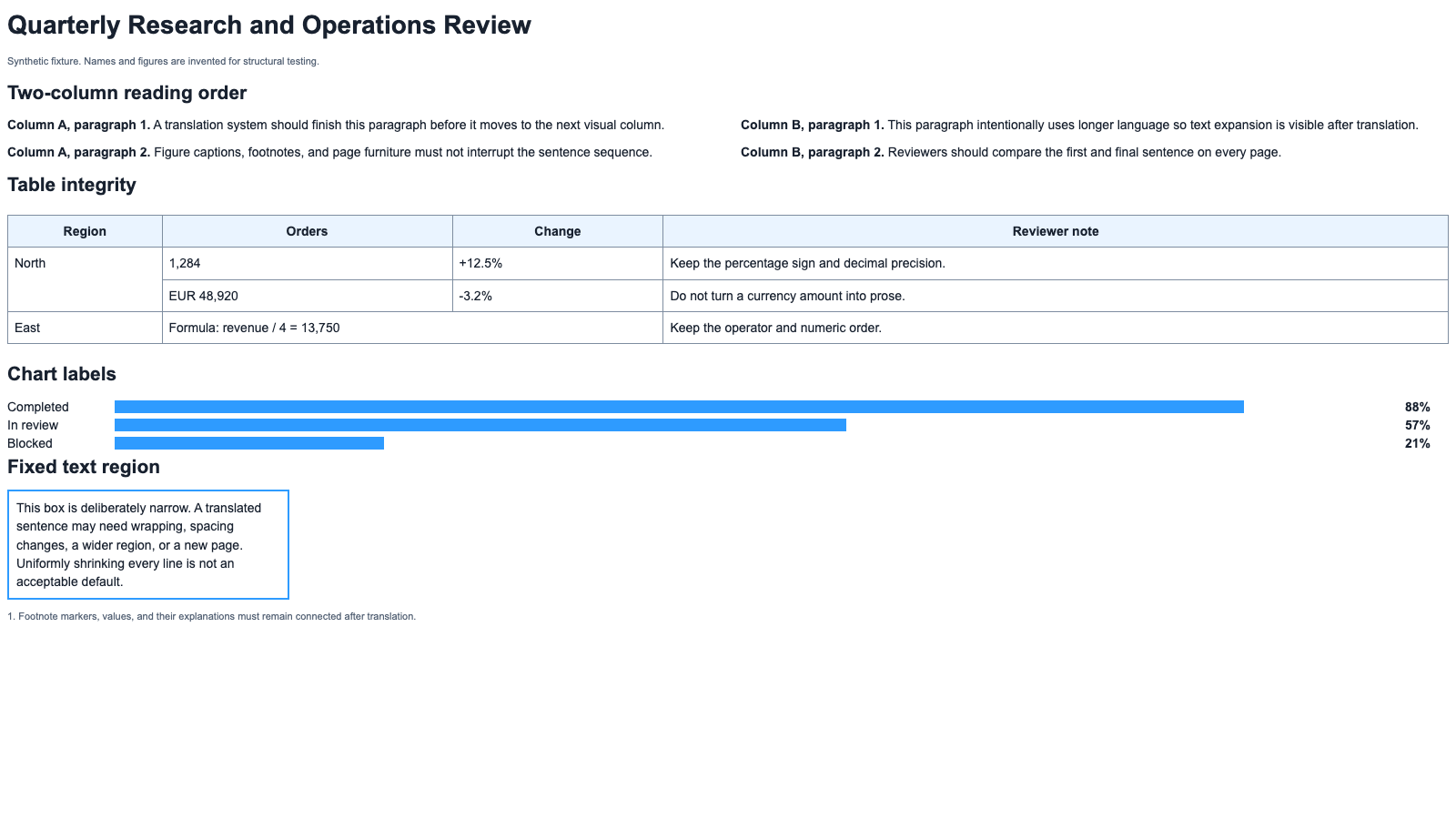
We created a two-page synthetic PDF layout translation stress test so the difficult parts of a PDF can be tested without customer documents. It is an A4, tagged PDF with invented names and figures. It is a fixture, not a vendor benchmark and not proof that any tool produces an accurate translation.
Page 1 tests:
- two-column reading order;
- a table with a merged cell;
- an integer, currency amount, signed percentage, and formula;
- chart labels whose position carries meaning;
- a deliberately narrow fixed text region;
- a footnote that must remain connected to its marker.
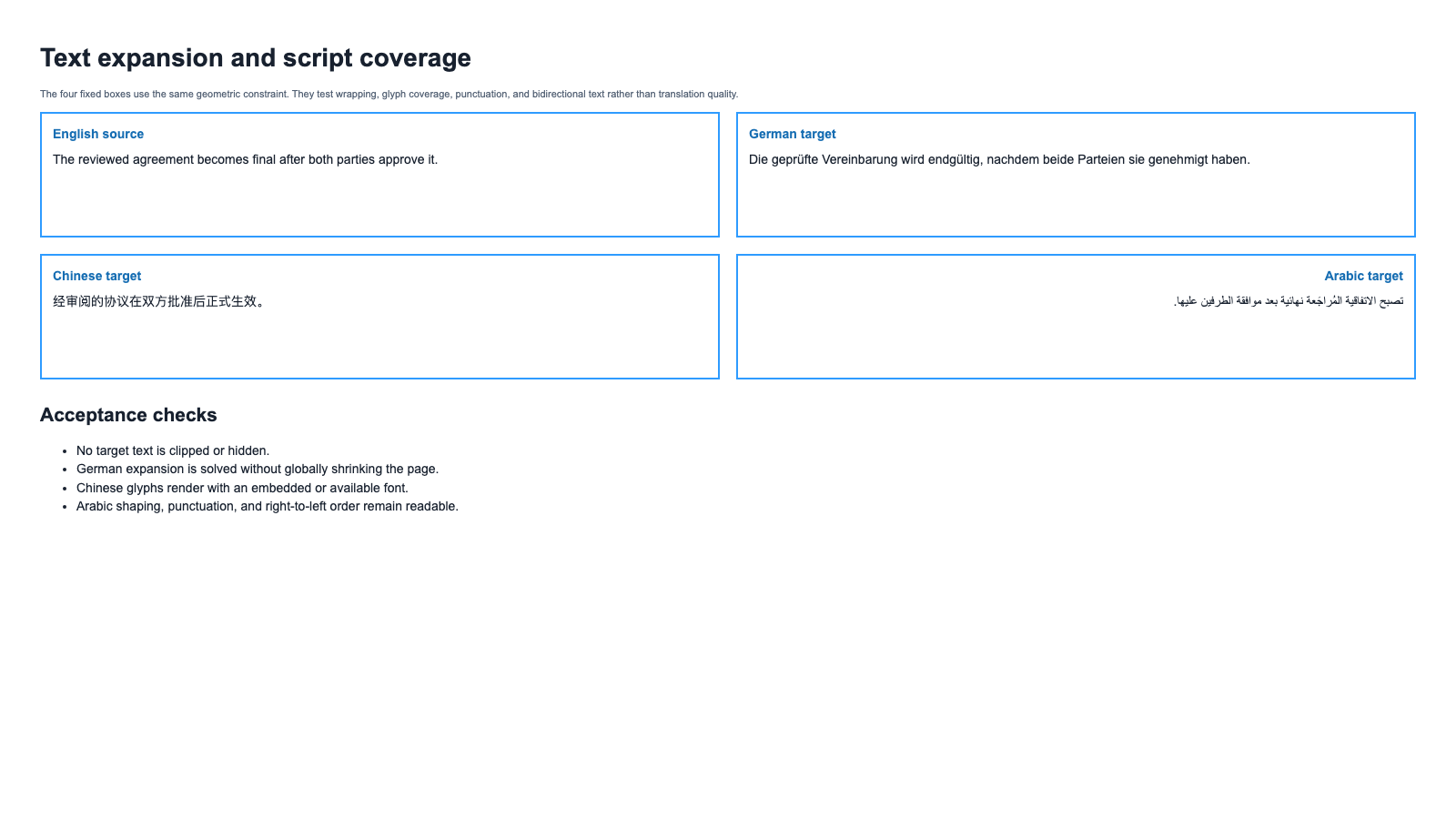
Page 2 places English, German, Chinese, and Arabic text inside equal-size boxes. It exposes four different problems: local expansion, line wrapping, missing glyphs, and bidirectional layout.
W3C's guidance on text size in translation explains why short labels and tightly constrained regions can expand disproportionately, while other translations may contract. Unicode's Bidirectional Algorithm specifies how mixed left-to-right and right-to-left characters are resolved. Neither problem can be solved reliably by counting source characters.
Download the fixture and run it through any workflow you are considering. Record the tool, date, settings, source language, target language, and output file. That turns “the formatting looks okay” into a repeatable test.
Diagnose Your PDF Before Translating It
1. Test whether the text is selectable
Try to select one sentence and one table cell.
- If both select cleanly, the PDF probably has a usable text layer.
- If the whole page selects as one image, it needs OCR.
- If text selects in tiny fragments or copied rows arrive out of order, visual placement is not the same as logical structure.
Adobe notes that a scanned PDF initially contains image data rather than searchable text. OCR adds a selectable, searchable layer, but Adobe also recommends reviewing recognition errors after processing. See Recognize text in scanned PDFs.
2. Copy a difficult section into a plain-text editor
Do this with a two-column paragraph, one full table row, and a caption. If the pasted order is wrong before translation, the translation layer is starting from the wrong sequence.
Adobe's Reading Order tool documentation shows that complex tables, figures, closely spaced columns, and page elements can need explicit order and tagging repair. Fluency cannot repair a paragraph that was assembled from the wrong fragments.
3. Choose the hardest representative page
Do not test the title page. Choose the page most likely to fail:
- the densest table;
- the narrowest sidebar or callout;
- a two-column page with a footnote;
- a chart with short labels;
- a page containing CJK, Arabic, Devanagari, or mixed scripts;
- a scan with low contrast or skew.
If the hardest page fails, translating 200 easier pages first only creates more cleanup.
4. Record the non-negotiable constraints
Different documents require different definitions of “preserved.”
| Document type | Usually non-negotiable | Usually flexible |
|---|---|---|
| Contract or form | Clause completeness, labels, signatures, page references | Local wrapping and modest spacing changes |
| Academic paper | Equations, citations, figure relationships, reading order | Page count and paragraph line breaks |
| Annual report | Numbers, units, table rows, chart associations | Label wrapping and local region size |
| Manual | Warnings, step order, callouts, image references | Pagination and controlled reflow |
| Book or long report | Chapter order, headings, notes, image placement | Page count and paragraph flow |
Write these constraints down before choosing a repair. Otherwise reviewers tend to protect visual similarity even when it damages meaning.
The Safest End-to-End Workflow
Step 1: Preserve the source and establish a baseline
Keep an untouched source file. Record page count, file type, language, whether the PDF is tagged, and whether text is selectable. If the document will be updated later, keep the original source document as well as the PDF.
Step 2: Run OCR only when needed
For image-only pages, run OCR in the correct source language. Review names, numbers, punctuation, tables, footnotes, and low-contrast regions before translation. OCR errors are upstream errors: a translation system can produce fluent output from text that was recognized incorrectly.
The dedicated scanned PDF guide covers scan cleanup, OCR language selection, suspect characters, and privacy checks in more detail.
Step 3: Translate the representative page
Use a workflow designed to return a document, not only translated prose. For most formatted PDFs, that means uploading the test file to BookTranslator PDF Translator, selecting the language pair, and reviewing the returned PDF.
Do not evaluate only the easiest paragraph. Compare the exact elements listed in your baseline.
Step 4: Review structure before wording
Check in this order:
- Were all source regions included?
- Is the reading order correct?
- Do table rows, chart labels, captions, and footnotes still point to the right objects?
- Are numbers, names, units, and formulas intact?
- Does the target script render correctly?
- Only then: is the translation fluent and accurate?
A polished translation of the wrong text order is still a failed document.
Step 5: Translate the full file and sample risky pages
After the representative page passes, translate the complete PDF. Review the first, middle, and last occurrence of each risky structure rather than checking only the first page.
For a long report, that may mean:
- the first and last two-column page;
- the simplest and densest table;
- a chart near the beginning and end;
- every warning page;
- every page where the target script or font changes.
Step 6: Apply the least destructive repair
Repair a local problem locally. Do not globally shrink the document because one heading is long.
Fix Text Overflow Without Shrinking Everything
Translated text overflows when the target wording no longer fits the source region's geometry. The immediate cause may be text expansion, but the binding constraint is usually one specific box, column, row, font, or line-breaking rule.
Apply repairs in this order:
| Order | Repair | Use when | Main risk |
|---|---|---|---|
| 1 | Allow natural wrapping | The region has unused vertical space | List indentation or row height may change |
| 2 | Adjust local line or paragraph spacing | The overflow is small | Dense text can become harder to read |
| 3 | Widen or increase the affected region | Nearby whitespace is genuinely unused | Adjacent objects may move |
| 4 | Reflow nearby elements | Several blocks compete for space | Page hierarchy and references can drift |
| 5 | Use an approved shorter target term | A standard concise term exists | Meaning requires bilingual review |
| 6 | Add a continuation page | The content cannot fit legibly | Pagination changes |
| 7 | Reduce font size locally | A small reduction remains readable | Accessibility and visual consistency |
Do not rely on a single language expansion percentage. A German paragraph may fit while a compound heading fails. Chinese prose may contract while an untranslated URL still overruns a cell. Arabic may fit by character count but fail because the font, shaping, punctuation, or direction is wrong.
Use this diagnostic:
- Clipped in one box: resize or reflow that region.
- Boxes or missing characters: replace or embed a font with the required glyphs.
- Long words or URLs refuse to wrap: fix line-breaking or hyphenation rules.
- Only table headers fail: use a table-specific repair.
- Repeated headers collide on every page: revise the page template rather than every paragraph.
- Two fragments become one oversized paragraph: repair reading order before touching typography.
If the source layout has no room for a faithful target-language version, identical coordinates are the wrong acceptance criterion. Preserve completeness, hierarchy, and readability instead.
Preserve Tables, Charts, Numbers, and Footnotes
A PDF table is not always stored as a table. It may be editable text over grid lines, many positioned fragments, or a single image. A chart label may be separate text or baked into the graphic.
That creates four independent failure classes:
| Failure class | Example | Why visual inspection alone misses it |
|---|---|---|
| Structural | A merged cell splits or two cells become one sentence | The result may still look aligned |
| Numeric | -3.2% loses the minus sign or moves to another row | Fluent prose distracts from the value |
| Visual | A translated header crosses a border | The text may still be complete |
| Referential | A footnote marker loses its note | Both pieces may still appear elsewhere |
Use a protected-token review for:
- integers and decimal values;
- positive and negative signs;
- percentages, currencies, dates, and version numbers;
- units and formulas;
- table and figure numbers;
- footnote markers and their qualifying text.
Locale conventions may change decimal separators or currency placement. The question is not whether every character is identical; it is whether the target represents the same quantity and remains attached to the correct label.
For each table, verify:
- The row and column count still matches.
- Merged cells cover the same records.
- Every number remains paired with its source label.
- Units, signs, and precision are correct.
- Footnotes still qualify the intended value.
- Header wrapping has not hidden content.
For each chart, verify the geometry and data remain unchanged, labels still identify the correct visual marks, and captions remain attached. If labels are embedded in an image, use image-aware OCR and redraw them, or retain the original chart with a translated caption or legend. Do not stretch or crop a chart to fit longer labels.
If a financial, scientific, or legal table contains even one wrong value relationship, the document fails regardless of how polished it looks.
Choose a Bilingual PDF Layout
A bilingual PDF is useful when someone must verify the target against the source. It is not automatically the best final deliverable.
| Review task | Best starting layout | Trade-off |
|---|---|---|
| Paragraph-by-paragraph editing | Source left, target right | Narrow columns amplify overflow |
| Mobile or tablet study | Source paragraph followed by target paragraph | Page count increases |
| Legal or archival reference | Facing source and target pages | The document roughly doubles in length |
| Dense tables and fixed pages | Separate synchronized source and target PDFs | Requires a viewer or review process that keeps pages aligned |
| Client delivery | Target-only PDF plus a separate bilingual review copy | Two controlled files must be maintained |
Do not align by visual line breaks. Translation can split one source sentence into two target sentences or combine two short sentences. Use headings, paragraph sequence, table numbers, figure numbers, list items, and footnote markers as stable anchors.
Side-by-side is a poor default when the source already has multiple columns, dense tables, marginal notes, or large local expansion. In those cases, facing pages or synchronized monolingual files preserve normal reading width and make failures easier to isolate.
Both languages should remain searchable and selectable when possible. Check copied text order, document language metadata, headings, table tags, and figure descriptions. If accessibility is a hard requirement, separate monolingual files are often safer than a complex alternating-column structure.
Choose the Right Tool for the Job
Dedicated PDF translator
Use a dedicated translator for long, formatted, or client-facing PDFs. It is the correct starting point when the required output is another usable PDF rather than a text transcript.
Google Translate
Use Google Translate for quick comprehension of short, simple documents when layout is not the deliverable. Multi-column pages, scans, dense tables, and final publishing need a more controlled workflow. The Google Translate PDF guide covers its document workflow and failure signs.
ChatGPT
Use ChatGPT for short passages, glossary preparation, tone decisions, and bilingual review. Do not treat a chat interface as the page-layout engine for a long PDF. The ChatGPT PDF workflow includes prompts that prohibit summarization and added content.
Convert PDF to DOCX
Convert first only when you intend to edit or rebuild the document manually. Conversion can split tables, reorder fragments, and turn chart labels into floating boxes before translation begins. Test the hardest page before committing. If the converted DOCX is structurally clean, continue with the DOCX translator; if it is already broken, translation will not repair the conversion.
Human or bilingual reviewer
Use a qualified reviewer for legal, medical, financial, safety-critical, academic, or published content. A layout workflow can preserve every box while the meaning is still wrong. Use the real translation samples to see how we separate language review from layout review.
PDF Translation Acceptance Checklist
Blockers
- Missing or clipped text
- Incorrect reading order
- Overlapping paragraphs or labels
- Numbers assigned to the wrong row or chart element
- Changed formulas, signs, units, or references
- Unreadable font size
- Missing target-language glyphs
- Broken Arabic or Hebrew direction and punctuation
- Hidden warnings, captions, or footnotes
Major defects
- Awkward but readable wrapping
- Captions separated from figures
- Large unexplained page drift
- Inconsistent heading treatment
- Repeated local font-size changes
- Bilingual blocks aligned to the wrong source passage
Cosmetic differences
- Different line endings
- Small whitespace changes
- A modest page-count change with corrected references
- Slightly different table row heights with all content visible
For each failed page, record the source page, element type, symptom, binding constraint, repair, and whether bilingual meaning review is required. That audit trail is more useful than saying “formatting adjusted.”
Recommended Workflow for Most PDFs
- Keep an untouched source PDF.
- Check whether text and table cells are selectable.
- Run OCR only for image-only content, then review recognition errors.
- Download the PDF stress test or select the hardest page from your own file.
- Translate that representative page with PDF Translator.
- Review reading order, tables, numbers, labels, footnotes, fonts, and direction before language fluency.
- Translate the complete file only after the representative page passes.
- Repair local constraints locally; do not globally shrink the document.
- Keep the source, translated PDF, settings, glossary, and review notes together for future revisions.
For equations, citations, and research layouts, continue with the academic paper translation workflow. If you are still deciding whether the source should be PDF or EPUB, use the EPUB vs PDF decision guide.
FAQ
What is the best way to translate a PDF without losing formatting?
Test a difficult representative page with a layout-aware PDF translator, then review logical structure and page layout separately. For a selectable PDF, start with PDF Translator. For a scanned PDF, run OCR and correct the text layer before translation.
Why does PDF formatting break during translation?
PDF pages contain positioned objects and drawing instructions rather than a simple stream of editable paragraphs. Translation changes text length, wrapping, glyph metrics, and direction, so the system must reconstruct both logical relationships and visual placement.
Can a translated PDF keep exactly the same page count?
Sometimes, but identical pagination should not override completeness or readability. Forms, contracts, and cited reports may require strict page references; ordinary reports and books may safely add a continuation page if references are updated.
How should I fix translated text that overflows?
Try natural wrapping, local spacing, resizing the affected region, controlled reflow, an approved shorter term, or a continuation page—in that order. Reduce font size only locally and only while it remains readable.
Can a PDF translator preserve tables and charts?
It can preserve many native-text tables and editable labels, but merged cells, positioned fragments, scans, and image-based charts still require explicit review. Check data integrity and layout integrity as separate pass/fail tests.
Should I create a side-by-side bilingual PDF?
Use side-by-side columns for paragraph review on wide, simple pages. Use interleaved blocks for mobile reading, facing pages for page-level reference, or synchronized source and target PDFs for dense layouts. Do not force two languages into already narrow columns.
Can Google Translate or ChatGPT keep PDF formatting?
Google Translate can be useful for quick comprehension, and ChatGPT can help with passages, glossaries, and review. Neither should be assumed to preserve a complex final PDF without testing. Use a document-oriented workflow when the output file and page structure matter.
What should I check first in a translated PDF?
Check that every source region is present and in the correct reading order. Then inspect tables, numbers, chart labels, captions, footnotes, fonts, and RTL text. Review fluency only after the document structure passes.
Related Posts