How to Translate a Kindle Book to Another Language
Kindle books use DRM and proprietary formats that block translation. This 4-step workflow — DRM removal, convert, AI translate, sideload — solves it.
Quick Answer: Convert A DRM-Free Kindle Book To EPUB, Then Translate The EPUB
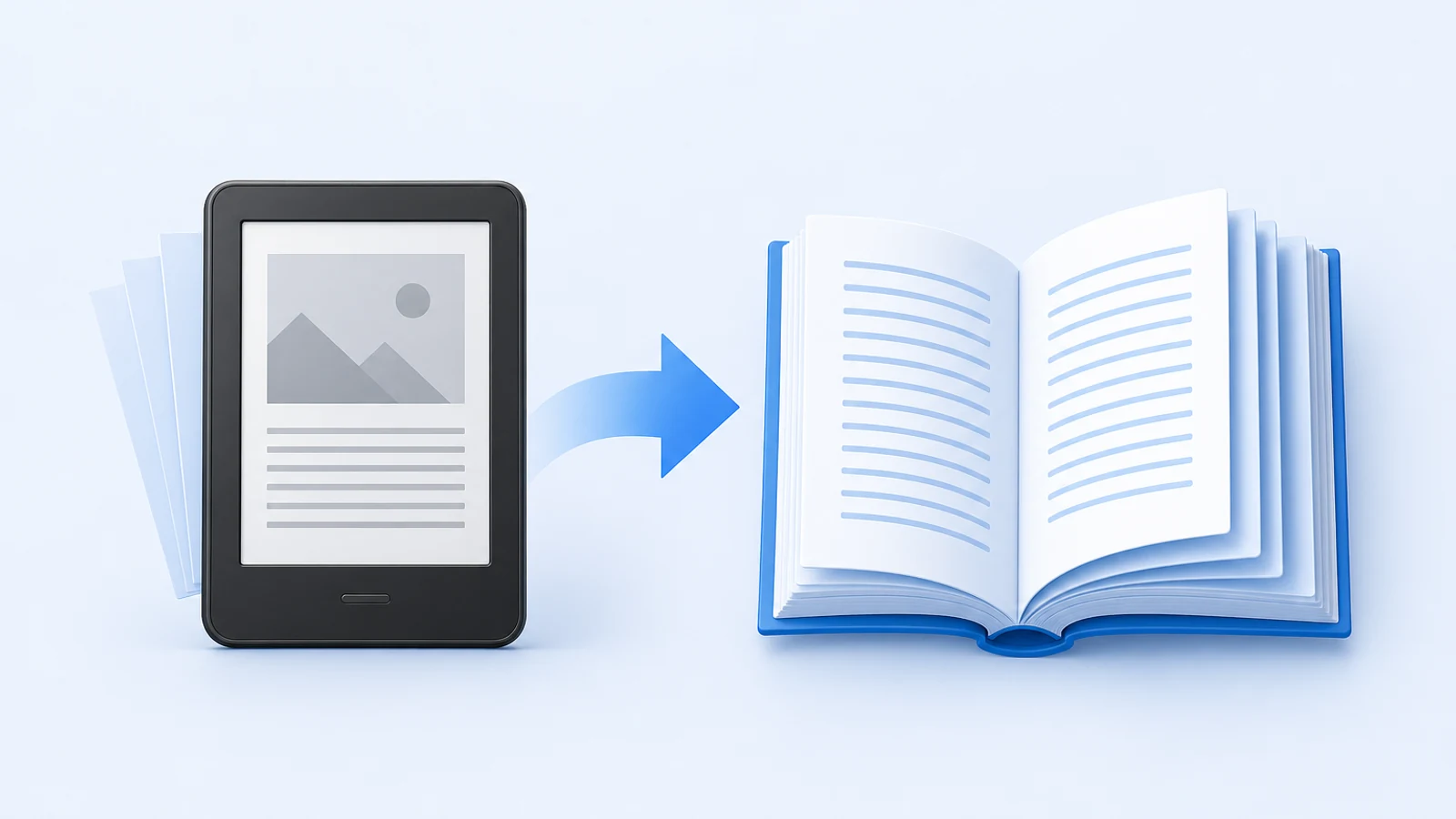
Most Kindle books cannot be translated directly because Kindle files use Amazon-specific formats and may be protected by DRM. The practical workflow is:
- Confirm you have the legal right to translate the book for your intended use.
- Work from a DRM-free Kindle file or another legally convertible copy.
- Convert the book to EPUB with Calibre.
- Check the EPUB structure before translation.
- Translate the EPUB with an EPUB Translator or another book-aware workflow.
- Send the translated EPUB back to Kindle or read it in any EPUB reader.
If you already have an EPUB file, skip the Kindle conversion steps and use the free EPUB translator workflow or go straight to translate your book. If you need to choose between AI, an agency, and a hybrid process, start with the complete book translation guide.
Important DRM And Legal Caveat
This guide is not legal advice and does not provide instructions for bypassing DRM. Kindle books can be protected by DRM, and laws about DRM circumvention vary by country. Even when you bought a book, you may not have the right to remove protection, distribute a translation, sell a translated copy, or publish it online.
Use this practical rule:
- Personal reading of a legally acquired, DRM-free file is the lowest-risk use case.
- Publishing, sharing, or selling a translated Kindle book requires rights holder permission.
- If the file is DRM-protected, check your local law and the book's license before doing anything else.
- BookTranslator does not remove DRM and cannot translate encrypted files.
For authors translating their own work, the workflow is simpler: export your manuscript or Kindle-ready file to EPUB, translate it, review it, then prepare a localized edition. The publishing side is covered in self-publishing in multiple languages.
Kindle Formats You May See
Kindle workflows can involve several file types. You do not need to master all of them, but you should know what you are starting with.
| Format | What it usually means for translation | Practical advice |
|---|---|---|
| EPUB | Standard ebook format accepted by many tools | Best working format for translation |
| MOBI | Older Kindle-style ebook format | Convert to EPUB before translating |
| AZW3 | Modern Kindle format with better styling support | Convert a DRM-free copy to EPUB |
| KFX | Newer Kindle format with enhanced typesetting | Conversion can be more fragile; verify output carefully |
| Fixed-layout document, sometimes used on Kindle | Use PDF workflow if layout matters |
When you have a choice, use EPUB as the translation source. It preserves book structure better than PDF for most reading workflows. The format tradeoff is explained in EPUB vs PDF: which translates better.
The Kindle Translation Workflow
Step 1: Get A Legally Usable Source File
Start by identifying what file you actually have and whether you are allowed to convert it.
Good source files:
- A DRM-free Kindle book.
- A public-domain ebook.
- A book you authored and exported yourself.
- A publisher-provided EPUB or manuscript file.
- A personal document already accepted by Kindle.
Problem source files:
- DRM-protected purchases you are not legally allowed to convert.
- Files downloaded from unauthorized sources.
- Scanned image-only files with no OCR.
- Fixed-layout books where text is part of images.
If you hit a DRM error in Calibre or another tool, stop and resolve the rights question first. Do not assume a technical workaround is legally allowed.
Step 2: Convert The Kindle File To EPUB With Calibre
Calibre is the standard desktop tool for ebook conversion and library management. For Kindle translation, use it to convert a legally usable Kindle file into EPUB before translation.
Basic Calibre workflow:
- Install Calibre from the official Calibre website.
- Open Calibre and add your DRM-free Kindle file.
- Select the book in your Calibre library.
- Choose "Convert books."
- Set the output format to EPUB.
- Keep the cover, chapter detection, and structure settings conservative unless you know why you are changing them.
- Run the conversion.
- Save the EPUB to a folder you can find.
If Calibre cannot read the file, check whether the file is DRM-protected, damaged, or in a format that needs additional Calibre support. For KFX files, verify the current Calibre documentation and plugin requirements instead of following stale setup advice from old forum posts.
Step 3: Inspect The EPUB Before Translation
Do not translate immediately after conversion. First, open the EPUB and inspect the structure.
Check:
- Does the book open without errors?
- Are chapters in the right order?
- Does the table of contents work?
- Are images visible and near the right text?
- Are italics, bold text, lists, and block quotes readable?
- Do footnotes or endnotes link correctly?
- Are there garbled characters or missing sections?
If the converted EPUB is broken, translation will preserve or amplify those problems. Fix the conversion first, find a cleaner source file, or choose a different workflow.
Step 4: Translate The EPUB
Once the EPUB looks clean, translate it with a tool that understands ebook structure.
The simplest route is:
- Go to the EPUB Translator.
- Upload the converted EPUB.
- Choose the source and target languages.
- Use bilingual output if you want to compare the translation against the original.
- Download the translated EPUB.
- Open the translated EPUB before sending it to Kindle.
This works well because the translation tool can preserve chapter files, ToC links, CSS, images, and notes. If you use a general text translator instead, you may understand the content, but you will not get a usable translated ebook.
Alternative workflows:
- Use a Calibre translation plugin if you want more control and are comfortable with setup.
- Use a browser bilingual reader if you only need to read, not export.
- Use a PDF translator only if your source is truly a fixed-layout PDF.
For a broader tool comparison, read 7 best EPUB translation tools.
Step 5: Send The Translated Book Back To Kindle
After translation, you can read the EPUB in many apps, not only Kindle. If you want it back on a Kindle device or Kindle app, use one of these routes.
Option 1: Send to Kindle
- Use Amazon's Send to Kindle workflow.
- Upload or email the translated EPUB.
- Let Amazon convert it for your Kindle library.
- Check the book on the actual device because conversion can change some styling.
Option 2: Calibre USB transfer
- Connect your Kindle to your computer.
- Use Calibre to send the translated book to the device.
- If needed, convert the translated EPUB to a Kindle-friendly format first.
- Eject the device safely and inspect the book on Kindle.
Option 3: Read outside Kindle
- Open the translated EPUB in Apple Books, Google Play Books, Kobo, Calibre's viewer, or another EPUB reader.
- This can be simpler if you do not need the book inside Amazon's ecosystem.
Kindle Workflow Decision Table
| Your situation | Best workflow |
|---|---|
| You own the rights to the book | Export EPUB, translate, review, publish or sideload |
| You have a DRM-free Kindle file | Convert to EPUB with Calibre, then translate |
| You have a DRM-protected purchase | Check law and license before proceeding |
| You only need private reading | Use EPUB translation and send/read the result privately |
| You need a publishable translation | Translate, then run human review and publishing QA |
| You have a fixed-layout PDF on Kindle | Use PDF Translator instead of EPUB conversion |
| You are translating many books | Test one representative book before scaling the workflow |
Quality Checks After Translation
Before you send the translated file to Kindle, inspect it like a real book.
Check the opening pages:
- Title page and metadata look reasonable.
- First chapter starts correctly.
- Paragraph spacing and indentation are readable.
- No obvious encoding issues.
Check navigation:
- Table of contents opens.
- Chapter links jump to the right sections.
- Back links from notes work when present.
Check content:
- Character names are consistent.
- Technical terms are consistent.
- Dialogue punctuation looks natural in the target language.
- Images and captions still belong together.
- No paragraphs appear in the wrong order.
Check device behavior:
- Send the book to the reading device you actually use.
- Change font size and line spacing.
- Test dark mode if you use it.
- Open notes, images, and long chapters.
This is the step most people skip. It is also where Kindle workflow problems show up.
Common Problems And Fixes
Calibre says the file is DRM-protected
The file is encrypted. BookTranslator and normal ebook tools cannot translate encrypted files. Check your legal rights and the book's license before taking any further action.
The converted EPUB has a broken table of contents
Try adjusting Calibre's structure detection settings, then convert again. If the source file has weak chapter markup, you may need to manually inspect the EPUB or use a cleaner source.
Images disappear after conversion
Check the Calibre conversion settings and inspect the source file. Some Kindle files contain images in ways that do not convert cleanly. If the images are essential, compare the source against the converted EPUB before translating.
The translated EPUB looks fine, but Kindle changes the styling
Amazon's Send to Kindle conversion can modify styling. Test both Send to Kindle and Calibre transfer if formatting matters. If exact layout matters more than reflowable reading, you may need a PDF workflow instead.
Notes or links are broken
Notes rely on internal anchors. If they break during Kindle-to-EPUB conversion, fix conversion before translation. If they break after translation, test another EPUB-aware translation workflow.
The language quality is uneven across chapters
Long books need consistency checks. Use bilingual output, glossary notes, or a review pass for repeated names, terms, and phrases. This matters especially for fiction, academic books, and technical material.
The book is fixed-layout or image-heavy
Some Kindle books behave more like designed pages than reflowable books. Children's books, comics, cookbooks, and heavily illustrated manuals may need a different workflow. Test a small section first.
A Safer Workflow For Authors
If you are translating your own book for Kindle publishing, do not start from a purchased Kindle file. Start from the source manuscript or publishing EPUB.
Recommended author workflow:
- Export a clean EPUB or DOCX from your writing or layout tool.
- Translate the source file with a book-aware tool.
- Review the translation with bilingual output.
- Run a native-speaker or editor review if the book will be sold.
- Localize title, subtitle, description, keywords, and author notes.
- Prepare the Kindle edition from the translated source.
- Preview the final file in Kindle Previewer or your normal publishing workflow.
For market selection, pricing, review, and launch steps, use the guide to self-publishing in multiple languages.
FAQ
Can I translate a Kindle book directly?
Usually no. Most Kindle files need conversion to EPUB first, and DRM-protected files cannot be translated by normal tools. If you already have a DRM-free EPUB, you can skip Kindle conversion and translate the EPUB directly.
Is it legal to translate a Kindle book I bought?
It depends on your jurisdiction, the file protection, and what you plan to do with the translation. Private reading is different from sharing, selling, or publishing. If DRM is involved or the translation will leave your personal use, check the law and get permission when required.
What is the best format for Kindle book translation?
EPUB is the best working format for most Kindle translation workflows. Convert a legally usable Kindle file to EPUB, inspect it, translate it, then send the translated EPUB back to Kindle or read it in another EPUB app.
Will my Kindle highlights and notes transfer?
Usually no. Kindle highlights and notes are tied to Amazon's reading system and the original book file. A converted and translated book is a new file, so annotations normally do not carry over.
Can I use Google Translate or DeepL for a Kindle book?
Only for short copied excerpts. General translators do not preserve the Kindle or EPUB book package. For a full book, convert to EPUB and use an EPUB-aware translator.
Can I translate Kindle books for publication?
Only if you own or have licensed the translation rights. If you are the author or rights holder, start from your manuscript or EPUB source, translate, review, localize metadata, and prepare a proper Kindle edition.
Should I translate Kindle as EPUB or PDF?
Use EPUB for normal books and e-reader reading. Use PDF only when the source is fixed-layout and the page design matters. Read EPUB vs PDF for translation if you are unsure.
Related Posts