PDF-Seitenzahlen stimmen nicht mit dem Buch überein? Prüfen Sie zuerst die Seitenbezeichnungen
Beheben Sie PDF-Navigation, die von den gedruckten Seiten abweicht. Sehen Sie sich sechs Beispieldateien zu römischem Titelei-Satz, einer Bildtafel und einem Auszug ab Seite 37 an.
Wenn ein PDF-Reader Seite 4 anzeigt, während auf der Buchseite selbst 1 steht, überprüfen Sie zuerst die Seitenbezeichnungender Datei. Ein Cover und eine römisch nummerierte Einleitung können die physische Position verschieben, ohne dass das Buch unvollständig ist. Korrigieren Sie die Navigationsbeschriftungen in einer Kopie; beginnen Sie nicht damit, neue Zahlen über die Seiten zu stempeln oder die Einleitung zu löschen.
Diese Korrektur hat ihre Grenzen: Beschriftungen können keinen fehlenden Scan wiederherstellen, keine falsche Seitenreihenfolge beheben oder unleserliche Zahlen erraten. Stellen Sie zuerst fest, welche Seite tatsächlich vorliegt. Sorgen Sie dann dafür, dass die Navigation sie präzise beschreibt.
Wir haben drei herunterladbare Vorher-Nachher-Paare erstellt, um den Unterschied zu verdeutlichen: ein siebenseitiges Notizbuch, eine Version mit einer eingefügten, unnummerierten Abbildung und einen Auszug, der bei der gedruckten Seite 37 beginnt. Bei jedem Paar wurden die Beschriftungen angepasst, während die gerenderten Seiten pixelgenau gleich blieben.
Unterscheiden Sie die drei Zahlen, bevor Sie etwas korrigieren
In diesem Leitfaden meint Dateiposition die erste, zweite oder dritte Seite im PDF. Gedruckte Seitenzahl bezeichnet die auf der Seite sichtbare Nummer. Seitenbezeichnung (Page Label) bezeichnet den logischen Bezeichner, der für die Navigation hinterlegt ist, wie etwa ii oder A-1.
Diese Werte können sich völlig legitim voneinander unterscheiden. Die Erklärung zu Page Labels der PDF Association beschreibt Nummerierungsfolgen, Präfixe und die Unterscheidung zwischen Seitenindizes, Nummern und Bezeichnungen. Eine Datei kann römisch nummerierten Vortext, eine neu startende Hauptteil-Nummerierung und Anhänge mit Präfixen enthalten, ohne dass die Gesamtseitenzahl fehlerhaft ist.
Hier ist die Zuordnung in unserer siebenseitigen Beispieldatei:
| Dateiposition | Sichtbare gedruckte Zahl | Ursprüngliche Navigationsbeschriftung | Korrigierte Beschriftung |
|---|---|---|---|
| 1 | Keine: Cover | 1 | Cover |
| 2 | i | 2 | i |
| 3 | ii | 3 | ii |
| 4 | 1 | 4 | 1 |
| 5 | 2 | 5 | 2 |
| 6 | A-1 | 6 | A-1 |
| 7 | A-2 | 7 | A-2 |
Cover ist eine beschreibende Bezeichnung, die wir vergeben haben, keine auf das Cover gedruckte Seitenzahl. Die Gesamtzahl bleibt bei sieben Seiten. Ein PDF-Reader zeigt unter Umständen sowohl eine Bezeichnung als auch eine Dateiposition an, wie etwa 1 (4 of 7); beides gleichzeitig zu sehen, ist kein Widerspruch.
Laden Sie die siebenseitige Datei vor der Beschriftung und die beschriftete Versionherunter. Öffnen Sie in beiden Dokumenten die erste Hauptteilseite und vergleichen Sie die Seite selbst mit den Navigationselementen.
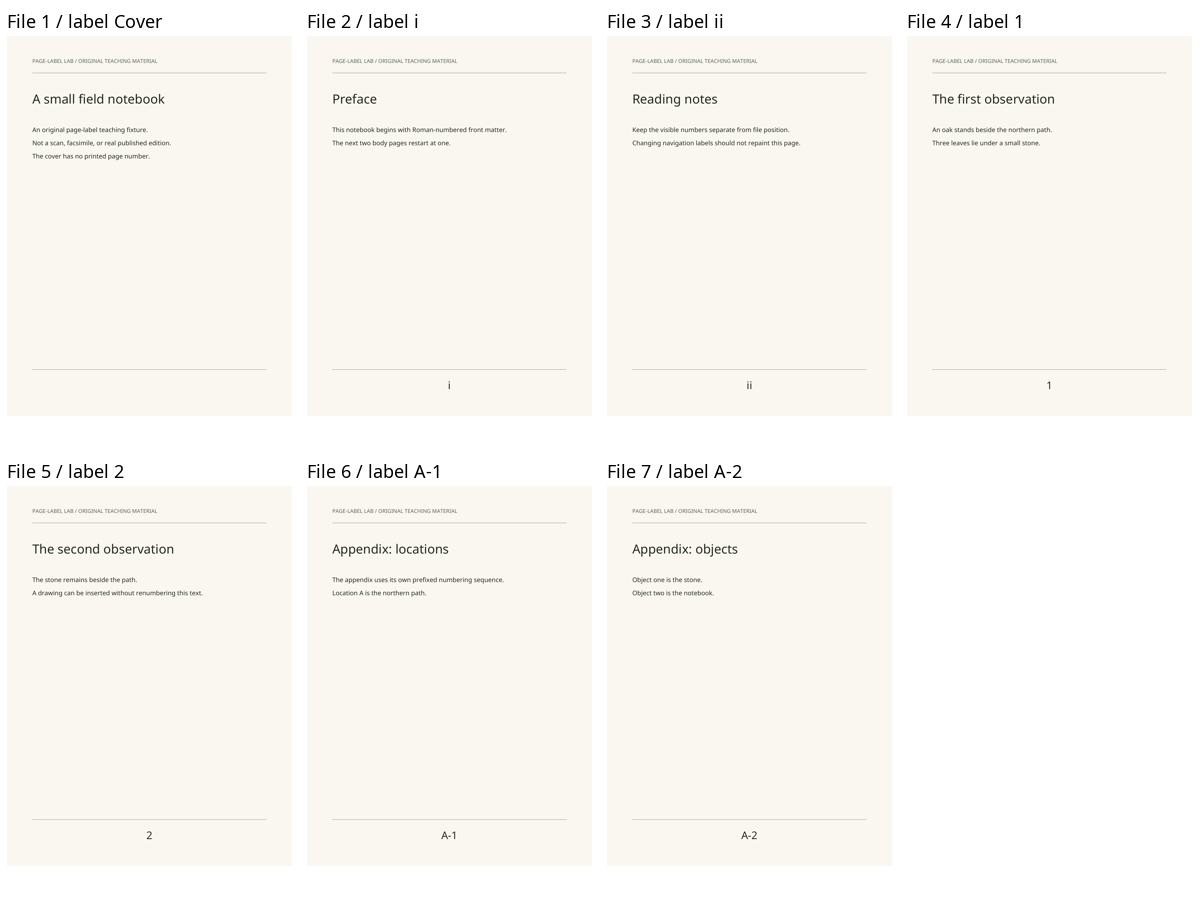
Dies ist eine Vorschau unserer erstellten Seiten mit außerhalb der Bilder eingefügten Bezeichnungen, kein Screenshot einer bestimmten PDF-Anwendung.
Erfassen Sie die Abschnittsgrenzen in einer Arbeitskopie
Speichern Sie vor dem Bearbeiten ein unverändertes Original und identifizieren Sie die Übergänge direkt anhand der Seiten: die erste nummerierte Einführungsseite, die erste Hauptteilseite, etwaige Einschübe sowie jeden Anhang oder Neustart der Nummerierung. Notieren Sie die Dateiposition neben der sichtbaren Kennzeichnung.
Prüfen Sie nicht nur die erste Hauptteilseite. Im obigen Beispiel führt „plus drei“ zwar zu Hauptteilseite 1, beschreibt aber weder die römisch nummerierte Einleitung noch den A- -Anhang. Ein einzelner Versatz ist nur ein temporäres Provisorium innerhalb eines fortlaufenden Abschnitts, keine verlässliche Beschreibung für das gesamte Buch.
Wenn eine Abfolge unerwartet springt – etwa wenn die sichtbaren Seiten von 38 auf 40 übergehen –, überprüfen Sie die dazwischenliegenden Seitenbilder und vergleichen Sie nach Möglichkeit dieselbe Ausgabe an der Quelle. Es kann sich um einen fehlenden Scan, eine bewusste Beilage, eine ungewöhnliche Originalnummerierung oder ein anderes Sortierproblem handeln. Vergeben Sie nicht einfach „39“ für eine beliebige andere Seite, nur damit der Zähler durchgehend wirkt.
Verwenden Sie bei signierten oder geschützten PDFs den zulässigen Quell-Workflow oder fordern Sie beim Bereitsteller des Dokuments ein korrigiertes Leseexemplar an. Die Testskripte in diesem Artikel sind nicht dazu gedacht, solche Schutzmechanismen beizubehalten oder zu umgehen.
Navigationsbezeichnungen ändern, nicht den gedruckten Inhalt
Der von Adobe dokumentierte Desktop-Weg
Adobes aktuelle Anleitung zu Acrobat-Seitenbezeichnungen verweist auf Alle Werkzeuge → Seiten organisieren → Seitennummerierung. Wählen Sie einen Bereich aus, beginnen Sie eine neue Sequenz und legen Sie dann den Nummerierungsstil, den Startwert und ein optionales Präfix fest. Wiederholen Sie diesen Vorgang für separate Abschnitte; ein fortlaufender Abschnitt kann die vorherige Sequenz weiterführen.
Für unser Beispiel bedeutet das: römische Ziffern für die Einleitung, eine bei 1 neu startende Dezimalnummerierung für den Hauptteil und eine Dezimalnummerierung mit A- für den Anhang. Überprüfen Sie vor dem Anwenden der einzelnen Änderungen die tatsächlich ausgewählten Seiten – insbesondere dann, wenn vorhandene Bezeichnungen bereits von den Dateipositionen abweichen.
Adobe unterscheidet diese Navigationsbezeichnungen von sichtbaren Kopf- und Fußzeilennummern. Wenn Sie lediglich möchten, dass die Bedienelemente des Readers mit dem Buch übereinstimmen, ist das Hinzufügen einer sichtbaren Fußzeile ein separater Arbeitsschritt.
Diese Schritte basieren auf der offiziellen Dokumentation. Für diesen Artikel haben wir keine Reparatur in Acrobat durchgeführt und keine spezifische Acrobat-Benutzeroberfläche getestet.
Die Methode, die wir tatsächlich mit pypdf getestet haben
Unsere Testdateien wurden mit ReportLab erstellt, mit pypdf 6.10.0 geklont und mit Bezeichnungen versehen, ohne die Inhaltsdatenströme der Seiten zu verändern. Ausschließlich für das siebenseitige Beispielsieht die zentrale Operation wie folgt aus:
from pypdf import PdfReader, PdfWriter
from pypdf.constants import PageLabelStyle

reader = PdfReader("seven-page-before.pdf")
writer = PdfWriter(clone_from=reader)
writer.set_page_label(0, 0, prefix="Cover")
writer.set_page_label(1, 2, style=PageLabelStyle.LOWERCASE_ROMAN, start=1)
writer.set_page_label(3, 4, style=PageLabelStyle.DECIMAL, start=1)
writer.set_page_label(5, 6, style=PageLabelStyle.DECIMAL, prefix="A-", start=1)

with open("seven-page-labeled-copy.pdf", "xb") as output:
    writer.write(output)

assert PdfReader("seven-page-labeled-copy.pdf").page_labels == [
    "Cover", "i", "ii", "1", "2", "A-1", "A-2"
]
Die API verwendet nullbasierte Indizes: Dateiposition 4 entspricht Index 3. Die oben genannten Bereiche schließen beide Endpunkte ein. Der exklusive Ausgabemodus, xb, verhindert das Überschreiben einer bereits vorhandenen Datei. Die genaue Implementierung finden Sie in der versionierten pypdf-Seitenbezeichnungs-API und in unserem vollständigen Generator .
Fügen Sie diese Bereiche nicht einfach in ein anderes Buch ein. Bestimmen Sie zuerst dessen Abschnittsstruktur. Unser getestetes Skript akzeptiert keine Kunden- oder Quell-PDFs: Es generiert ausschließlich die darin definierten Originalbeispiele.
Zwei Fälle, in denen ein fester Offset fehlschlägt
Eine unnummerierte Abbildung ändert den Offset des Hauptteils
Im zweiten Testbeispiel haben wir eine Bildtafel zwischen den gedruckten Hauptteilseiten 1 und 2 eingefügt. Die Bildtafel trägt keine gedruckte Seitenzahl. Wir haben ihr die beschreibende Beschriftung Plate-A zugewiesen und die Nummerierung auf der nächsten Hauptteilseite mit 2 fortgeführt.
| Dateiposition | Sichtbare Seitenkennung | Label |
|---|---|---|
| 4 | 1 | 1 |
| 5 | Unnummerierte Abbildung | Tafel-A |
| 6 | 2 | 2 |
Vor dem Einschub lag die gedruckte Seite 1 an Dateiposition 4: ein Offset von drei. Nach dem Einschub liegt die gedruckte Seite 2 an Dateiposition 6: ein Offset von vier. Würde man den ersten Offset wiederverwenden, landete man direkt auf der Abbildung.
Vergleichen Sie die achtseitige Version vor der Beschriftung mit der beschrifteten Version. Die Korrektur fügt an der Einfügestelle einen Beschriftungsabschnitt ein und setzt die Hauptteilzählung danach fort. Sie macht die Bildtafel weder zu einer nummerierten Quellseite noch entfernt sie diese aus der Datei.
Ein Auszug kann bei der gedruckten Seite 37 beginnen
Unser drittes Testbeispiel enthält drei Seiten, die sichtbar mit 37, 38 und 39 nummeriert sind. Ihre Dateipositionen lauten 1, 2 und 3. Passende Labels beginnen folglich bei 37, nicht bei 1.
Sowohl die Vorher-Datei als auch die Nachher-Datei enthalten exakt diese drei Seiten. Wenn Sie die erste Seite als 37 beschriften, bedeutet das keineswegs, dass die PDF-Datei auch die vorherigen 36 Seiten enthalten muss.
Verwenden Sie für einen echten Auszug Zahlen, die Sie anhand der Quelle überprüfen können. Wenn die erste sichtbare Zahl fehlt oder abgeschnitten ist, beschaffen Sie entsprechende Belege aus der Quelle, bevor Sie sie zuweisen. Eine willkürlich vermutete Sequenz kann irreführender sein als eine bloße Zählung der Dateipositionen.
Überprüfen Sie die gespeicherte Datei, nicht nur den Bearbeitungsdialog
Für diese drei Paare haben wir alle sechs PDFs erneut geöffnet und jede Seitenbezeichnung überprüft. Poppler 26.08.0 renderte beide Versionen mit 144 dpi. Alle 18 korrespondierenden Seitenpaare wiesen identische Pixel auf, und alle 18 Seiteninhalt-Streams stimmten Byte für Byte überein. In diesem Test wurde nichts auf den Seiteninhalt gestempelt oder daraus entfernt.
Die Ergebnisse pro Seite umfassen Datei-Hashes, Seitenbezeichnungen und Pixelvergleiche. Die herunterladbare Seitenzuordnung erfasst Dateipositionen, nullbasierte Indizes und sichtbare Seitenzahlen. Anleitungen zur Reproduktion erläutern die Versionen der Abhängigkeiten und wie sich die Beispiele in neuen Verzeichnissen neu generieren lassen.
Dies verifiziert unsere Dateien, jedoch nicht, wie jeder einzelne Viewer damit umgeht. Die PDF Association dokumentiert Unterschiede bei der Unterstützung von Seitenbezeichnungen zwischen verschiedenen Anwendungen; ihre veröffentlichte Viewer-Übersicht stammt aus dem Jahr 2024 und ist kein Test, den wir heute wiederholt haben. Überprüfen Sie daher das Anzeigeprogramm, das Sie tatsächlich verwenden:
- Öffnen Sie die gespeicherte Kopie erneut und stellen Sie sicher, dass die Gesamtseitenzahl unverändert ist.
- Prüfen Sie die erste und letzte Seite jedes Nummerierungsabschnitts.
- Versuchen Sie, zu
ii,1undA-1zu navigieren (oder den entsprechenden Werten in Ihrem Dokument). - Vergewissern Sie sich, dass jeder Sprung tatsächlich auf der beabsichtigten sichtbaren Seite landet – und nicht bloß auf einem passend aussehenden Zähler.
- Wenn der Viewer die Seitenbezeichnungen ignoriert, behalten Sie die explizite Zuordnung von Position zu Seite bei oder verwenden Sie einen Viewer, der sie unterstützt. Überschreiben Sie korrekte Bezeichnungen nicht wiederholt, nur um eine unzureichende Benutzeroberfläche auszugleichen.
Ein identisches Rendering ist kein Beweis für Barrierefreiheit, gültige Signaturen, funktionierende Links oder korrekt extrahierten Text. Wenn die Seite optisch stimmt, aber kopierter Text fehlerhaft ist, nutzen Sie die separate PDF-Textebenen-Diagnose. Dieses Problem lässt sich durch Seitenbezeichnungen nicht beheben.
Behalten Sie die ursprüngliche Zuordnung bei, falls Sie das Dokument später übersetzen
Wenn eine präzise Navigation das einzige Problem war, sind Sie hier fertig. OCR oder Übersetzung sind nicht erforderlich, um Seitenbezeichnungen umzubenennen.
Ist die Sprache weiterhin das Hindernis, behalten Sie die Originaldatei und die Seitenzuordnung bei, bevor Sie den Schritten im Workflow für die Übersetzung gescannter PDFs oder dem Leitfaden zu PDF-Übersetzung und -Formatierungfolgen. Für umfassendere Prüfungen der Ausgabe nutzen Sie die QA-Checkliste für PDF-Übersetzungen.
Leser, die den PDF-Übersetzer von BookTranslator nutzen, sollten nicht davon ausgehen, dass die Seitenbezeichnungen der Quelle in einer neu erstellten Ausgabe erhalten bleiben. Der OCR-Modus kann das ursprüngliche Layout, Schriftarten und Schriftgrößen verändern. Wenn der Text in der Ausgabe neu umbrochen wird, gleichen Sie wichtige Passagen mit dem Original ab; das bloße Übertragen der alten Nummerierungszuordnung auf neue Seitenumbrüche stellt keine Übereinstimmung sicher.
Das Ziel ist nicht, jede Nummer identisch zu machen. Es geht darum, jede Nummer eindeutig zu machen: wo eine Seite in dieser Datei liegt, wie die Quelle sie nennt und wie Ihre Leser dorthin gelangen.
Verwandte Beiträge